How to track your time in Chrome automatically
By Aditya Trivedi ·
To track your time in Chrome automatically, add a time-tracking extension that counts each website while it’s on your screen. There’s no timer to start or stop: it notes which tab is in front, adds up the minutes for each site, and pauses when you step away. Chrome has no built-in way to do this, and the same steps work in Edge.
We make Pawsome Family, a Chrome and Edge extension whose Screen time counts how long each website is on your screen, so the steps below use it. Checked on November 13, 2026.
How an extension tracks time on its own
Two questions decide whether a minute counts: which site is in front, and are you still there?
- Which site is in front. Chrome tells extensions when the active tab changes and which tab is active in each window. A tab’s address and title are protected: an extension sees them only if it has permission for that page.
- Whether you’re still there. Chrome offers extensions an idle signal. It marks the computer idle after a set number of seconds without keyboard or mouse input, 60 by default.
Pawsome Family’s Screen time doesn’t use that idle signal. It checks inside each page instead, every 30 seconds. Is this tab the one showing in its window? Has there been mouse, keyboard, scroll or touch activity in the page in the last 2 minutes, or is a video playing in it? If the tab is showing and either is true, the site gets up to 30 seconds.
Set it up
- Sign up. Go to pawsome.family/screen-time and select Try it free. No card is needed, and there’s no pet to make. The account comes with Milo, a golden retriever, whom you can hide from the toolbar menu.
- Add the extension. The Screen time page asks you to add Pawsome Family if it isn’t there yet. In Chrome, select Add to Chrome, then Add extension. In Edge, select Get, then Add extension.
- Reload open tabs. Reload any tabs that were already open.
- Pin the button. Select the puzzle-piece Extensions icon and pin Pawsome Family, so today’s total is one click away. See how to add, pin and remove extensions.
Screen time is on from the start. If you already use Pawsome Family for a pet or the website blocker, open Screen time under Pawsome tools in the app and select Start counting.
What counts and what doesn’t
| Counts | Doesn’t count |
|---|---|
| The tab showing in its window | Background tabs and minimized windows |
| A site while you use the mouse, keyboard or touch in it | After 2 minutes with no activity in the page |
| A video playing in a tab that’s showing | Private (incognito) windows |
| Ordinary web pages, by site name | Chrome’s own pages, like New Tab and Settings |
| Chrome and Edge on computers | Other apps, other browsers, phones and tablets |
A few cases worth knowing:
- Working in another app while a Chrome tab sits beside it counts nothing, unless that tab is playing a video.
- Reading a long page without touching the mouse or keyboard for over 2 minutes stops the count until you scroll or move the mouse.
- Two windows side by side don’t double the time. It’s counted once.
- A site is its name, without www. mail.google.com and docs.google.com are two separate sites, and page addresses are never kept.
Why 2 minutes, and why video keeps counting: why time trackers stop counting when you step away.
Today’s total in the toolbar
Select the Pawsome Family button in the toolbar. The menu shows today’s total, and Screen time › opens the full page. If it says “Screen time is off”, select Start counting ›.
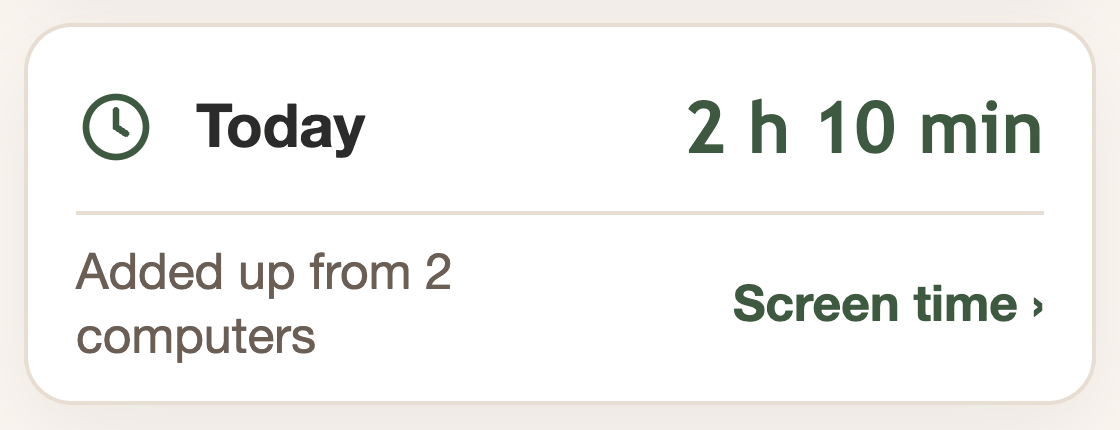
The menu also shows the email the extension is signed in with. If nothing is counted, check that it’s the account you see in the app, and that the extension is version 1.7.0 or newer.
The Screen time page
At the top, choose Today, Last 7 days or Last 30 days. Each site shows its icon, its name, a bar and its time, longest first. The top 6 show first, and a button such as Show all 11 sites lists the rest.
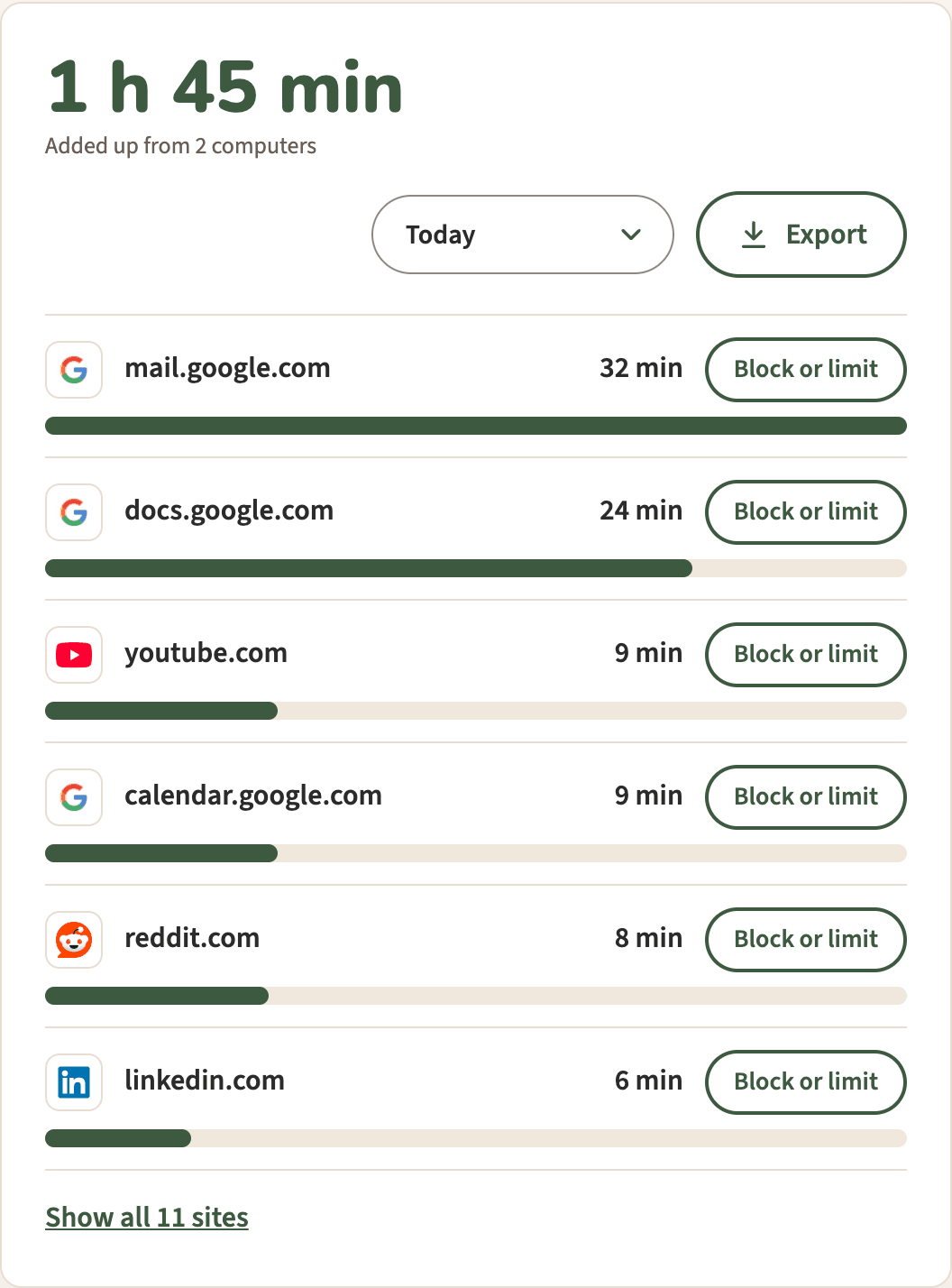
On the same page:
- Export downloads a spreadsheet (CSV) with the time on each site for each day. See how to export your browsing time.
- Block or limit next to a site adds it to the website blocker, as Always or a Daily limit of 15 min, 30 min or 1 hour.
- Monday email sends a summary of the week before, every Monday at 8 am your time. There’s none in a week with nothing counted.
On two computers, in Chrome or Edge
Sign in to the same account in the extension on each computer. Each one counts its own time, and the Screen time page adds them up into one total, with a note such as “Added up from 2 computers”.
It works in Chrome on Mac, Windows, ChromeOS and Linux, and in Edge on Mac, Windows and Linux. It doesn’t count phones. On an Android phone, Digital Wellbeing can show time per site in Chrome.
After the free trial
Screen time is free for 30 days, with no card. Then it’s $3.33 a month, billed yearly at $40 (or $5 billed monthly). Without the plan, counting carries on and nothing is deleted. Today, Last 7 days, your top sites and a basic Monday email with the week’s total stay free. Last 30 days, Export, Block or limit and the full Monday email come with the plan. See how the free trial works.
Start counting with Screen time
Pawsome Family’s Screen time tracks your time in Chrome and Edge on its own, site by site, with nothing to start or stop. It keeps only site names and minutes, never the pages. The help page covers every setting.
Free for 30 days, with no card needed.