Screen time for your browser: what it measures and what it doesn’t
By Aditya Trivedi ·
Screen time for your browser measures how long each website is on your screen in Chrome or Edge. It counts the tab in front of you while you’re using it or watching a video in it, and adds up the minutes by site name. It doesn’t see other apps, your phone, which pages you read, or whether you were focused.
We make Pawsome Family, a Chrome and Edge extension whose Screen time counts how long each website is on your screen. Below are its exact rules, so you know what the numbers mean. Checked on November 13, 2026.
The rule behind every minute
Every 30 seconds, the extension checks each open page for three things:
- Is this tab the one showing in its window? A background tab or a minimized window is not.
- Is the page in use, with mouse, keyboard, scroll or touch activity in it in the last 2 minutes?
- Is a video playing in it?
If the tab is showing and either the second or the third is true, that site gets up to 30 seconds. Everything below follows from that.
What counts
- The tab in front. Only the tab showing in its window counts. Tabs left open in the background don’t.
- While you’re using it. Counting stops after 2 minutes without the mouse or keyboard. If you read a long page without touching anything for longer than that, the count stops until you scroll or move the mouse, so some reading time is missed.
- Video. A playing video keeps counting while its tab is showing, even if you don’t touch the mouse or keyboard.
- Once, not twice. With two Chrome windows side by side, the time isn’t counted twice.
What doesn’t count
- Other apps. Activity is noticed inside the page itself. Working in another app while a Chrome tab sits beside it counts nothing, unless that tab is playing a video.
- Private windows. Incognito windows are never counted.
- Chrome’s own pages. The New Tab page, Settings and the Chrome Web Store aren’t counted. Only ordinary web pages are.
How a site is named
- Without www. www.youtube.com is counted as youtube.com.
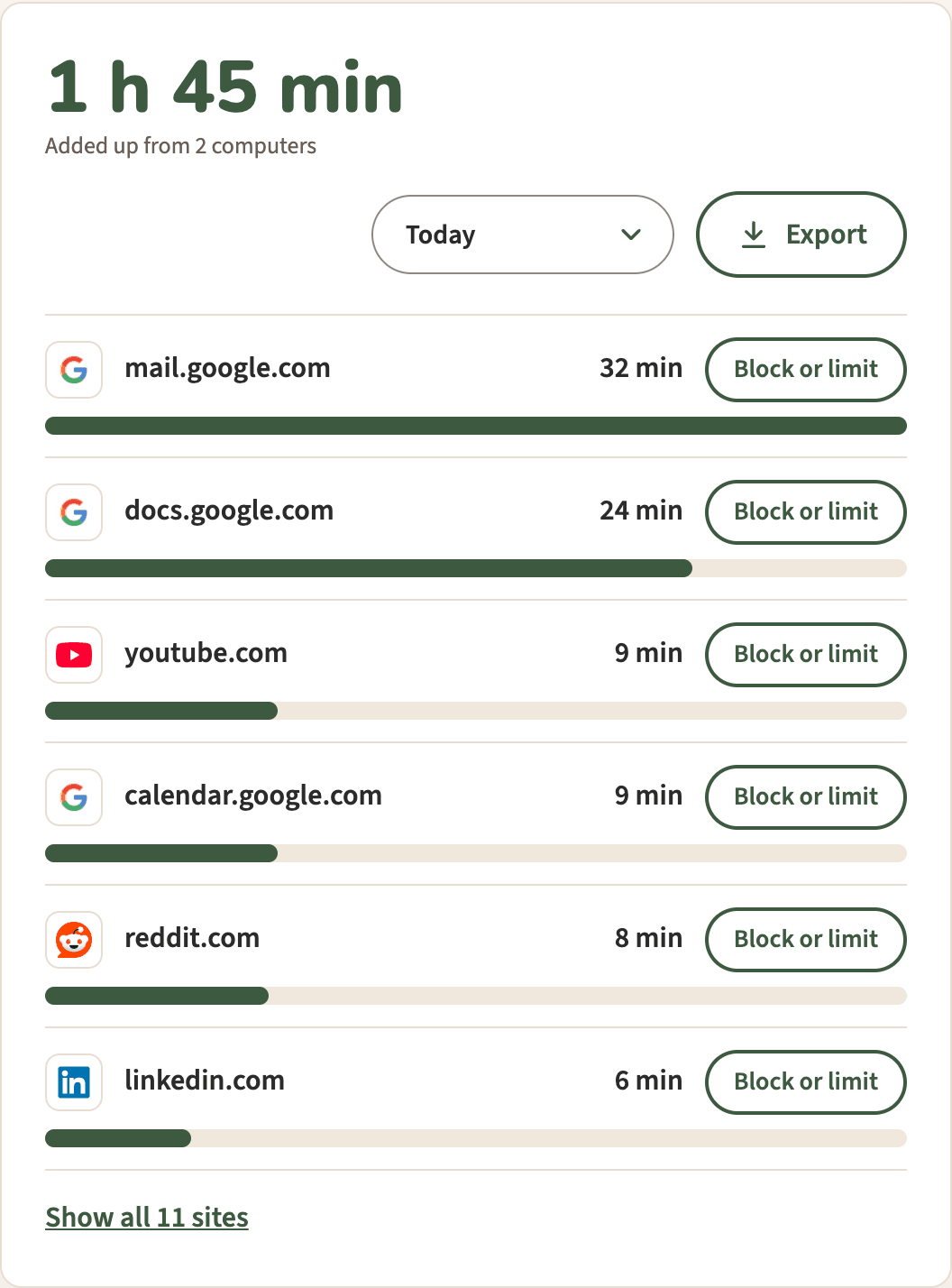
- Subdomains are separate. mail.google.com, docs.google.com and calendar.google.com are three sites.
- Only the name. Page addresses, titles and anything on the page are never kept. So it can’t tell which video you watched or which article you read.
Days and computers
- A day runs from midnight to midnight on your computer’s clock.
- Sending. Counts are kept in the browser and sent to your account every 5 minutes, and when you open the toolbar menu. Only site names and seconds per day are sent.
- Two computers. Sign in to the same account in the extension on each computer. Each one counts its own time, and the Screen time page adds them up into one total, with a note such as “Added up from 2 computers”.
What’s sent and kept, in more detail: is a time-tracking extension private?
What it doesn’t measure
| Not measured | Why |
|---|---|
| Other apps on your computer | It runs inside Chrome and Edge |
| Other browsers | It’s a Chrome and Edge extension |
| Phones and tablets | It works on computers only |
| Which pages, titles or videos | Only site names are kept |
| Background tabs | Only the tab on screen counts |
| Focus, or how well you worked | Minutes on screen aren’t a measure of attention |
On a phone, Android’s Digital Wellbeing can show time per site in Chrome. On a computer, Chrome’s own History lists visits but not time spent. See how to see time spent on each website for the other built-in options.
Why the rules are strict
Time trackers can overcount. A 2021 review of studies comparing logged and self-reported use warns that some tracking tools “may inadvertently log background activities as instances of active usage, thereby overestimating active usage”. Counting only the tab on screen, and stopping when the page goes quiet, keeps background time out.
Extensions can also use Chrome’s own idle signal, which marks the computer idle after a set number of seconds without keyboard or mouse input, 60 by default. Screen time watches activity in the page instead. That’s why a video you’re watching keeps counting, while a tab left beside another app doesn’t. Why time trackers stop counting when you step away goes into this in more detail.
Reading the numbers
The numbers answer one question well: how long was each site on screen while in use? That makes them good for comparing sites, and one week with the next. They don’t say whether the time was well spent. An hour on youtube.com might be a lecture, and an hour on docs.google.com might be a slow day on one hard paragraph.
See it for yourself with Screen time
Pawsome Family’s Screen time counts by these rules in Chrome and Edge, and keeps only site names and minutes. The help page covers every setting.
Free for 30 days, with no card needed.