How to export your browsing time to a spreadsheet
By Aditya Trivedi ·

To export your browsing time to a spreadsheet, you need a tool that has counted the time on each site, because Chrome’s history records when you visited a page, not how long you stayed. In Pawsome Family’s Screen time, select Export on the Screen time page to download a CSV file with the minutes on each site for each day. Open it in Google Sheets with File, then Import, or in Excel with File, then Open.
We make Pawsome Family, a Chrome and Edge extension whose Screen time counts how long each website is on your screen. The file below is ours. The spreadsheet steps come from Google’s and Microsoft’s help pages, checked on November 13, 2026.
Why Chrome’s own export won’t do
Chrome’s History page lists the pages you’ve visited in the last 90 days, with no time spent. You can export your Chrome data with Google Takeout, including your browsing history. But Google’s description of Chrome history data gives each visit’s address, title and time, in JSON, with no field for how long you stayed. A Takeout archive also expires in about 7 days.
So a list of visits can tell you that you opened a site at 9:14, but not whether you stayed for a minute or an hour. For that, something has to count while you browse. How to see the time you spend on each website covers the options.
Step by step
- Open Screen time. In the Pawsome Family app, open Screen time under Pawsome tools, or select Screen time › in the toolbar menu.
- Select Export. It’s at the top of the page, next to the date range.
- Find the file. It downloads as screen-time.csv.
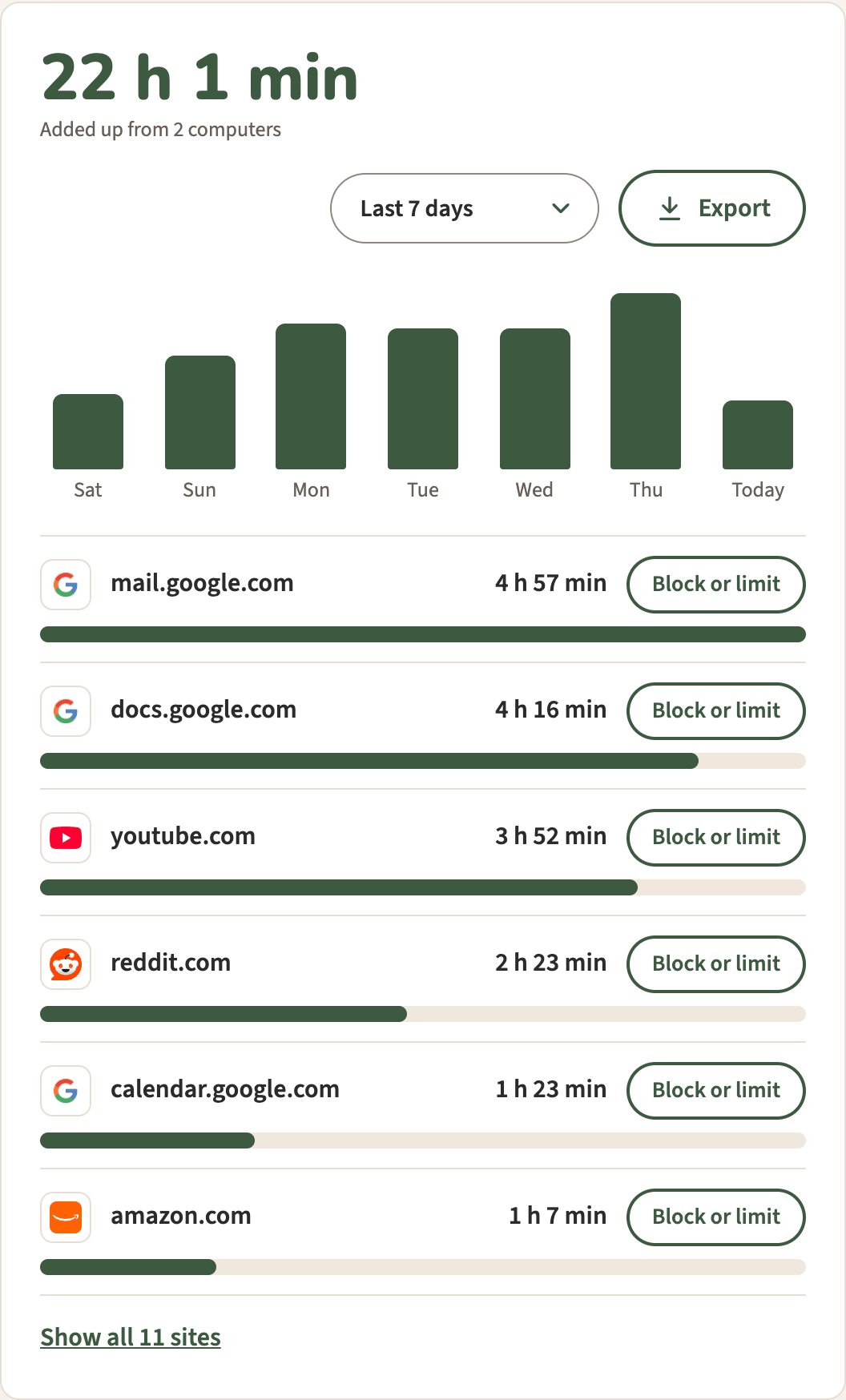
The file is the same whichever range you’re looking at. Export comes with the free trial, and after it with the plan, which is $3.33 a month, billed yearly at $40 (or $5 billed monthly). Without the plan, counting carries on and nothing is deleted, so your older days are there when you get it.
What’s in the file
- Three columns: the first row holds their names, Date, Site and Minutes.
- One row per day and site, for every day counted since Screen time was switched on, not only the last 30 days.
- Longest first. Within a day, the site with the most minutes comes first.
- Whole minutes. Minutes are rounded to the nearest minute, and a site with less than half a minute that day is left out.
- All your computers. Each day is added up across all the computers on your account.
- Dates year first, like 2026-11-13, so they sort in order.
- Site names only, like youtube.com. Never page addresses or titles.
A few rows might look like this:
| Date | Site | Minutes |
|---|---|---|
| 2026-11-12 | mail.google.com | 71 |
| 2026-11-12 | docs.google.com | 63 |
| 2026-11-12 | youtube.com | 28 |
Open it in Google Sheets
- Open a new or existing spreadsheet in Google Sheets.
- Select File, then Import, and choose screen-time.csv.
- Pick where it goes, such as Create new spreadsheet or Insert new sheets.
- Leave the separator on Detect automatically, or choose Comma.
- Select Import.
These steps are from Google’s help page on importing.
Open it in Excel
- Select File, then Open, and browse to the file.
- Choose Text Files as the file type, then pick screen-time.csv.
Excel reads each column using your default data settings. For more control over how a column comes in, use Data, then From Text/CSV, under Get & Transform Data. If you later save it back with Save As and CSV (Comma delimited), Excel saves only the sheet you’re on. See Microsoft’s help page.
Useful things to do with it
- Total by site. Make a pivot table with Site as the rows and the sum of Minutes as the values. You get each site’s total for every day in the file. Divide by 60 for hours.
- Total by day or week. Make a second pivot table with Date as the rows. It gives each day’s total, and seven rows make a week.
- One site over time. Filter the Site column to one site to see its minutes day by day. If a client has their own web app, that’s their time. Tracking time per client without timers explains when this works and when it doesn’t.
- Compare weeks. Put two weeks side by side and see which sites grew. For what to look for, see where the workday goes.
Each export is a snapshot. Download it again whenever you want the newest days.
Screen time, ready for a spreadsheet
Pawsome Family’s Screen time counts the minutes each site is on your screen in Chrome and Edge, and Export turns every day of it into a spreadsheet. Here’s how it works.
Free for 30 days, with no card needed.