How to add, pin and remove Chrome extensions
By Aditya Trivedi ·
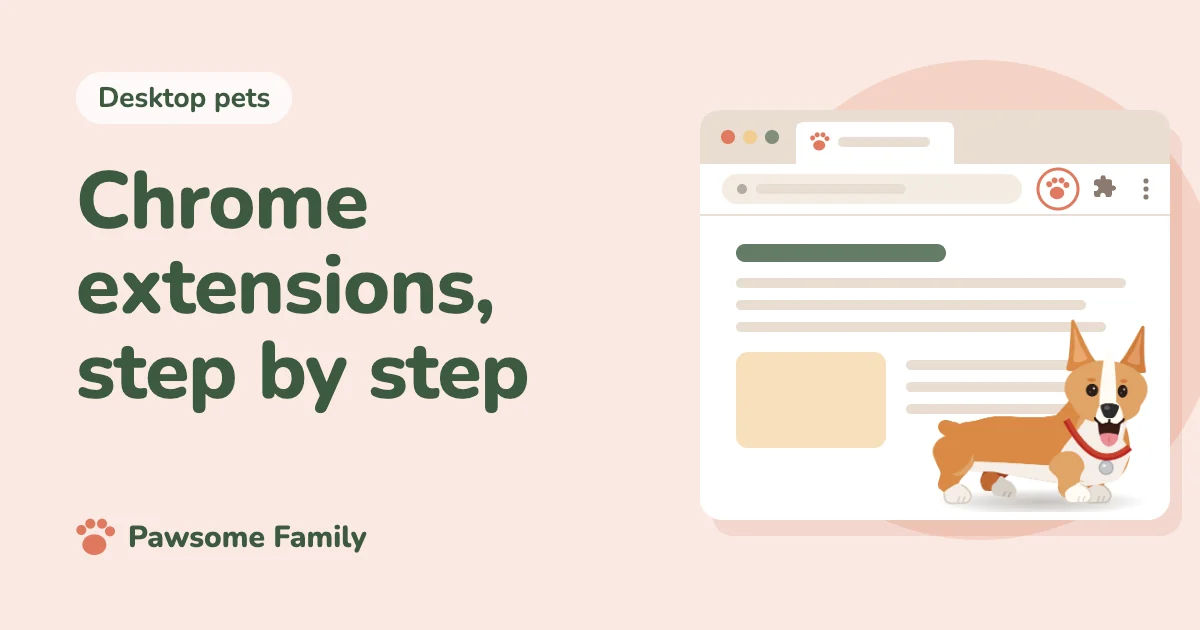
To add an extension, open its page in the Chrome Web Store, select Add to Chrome, then Add extension. To pin it, select the Extensions icon, which looks like a puzzle piece, to the right of the address bar, then select the pin beside the extension. To remove it, right-click its icon and choose Remove from Chrome.
This works the same in Chrome on a Mac, Windows, Linux and a Chromebook. If you’re new to them, start with what a browser extension is. Below are the steps in more detail, plus how to choose which sites an extension can run on, turn it off for a while, and use it in Incognito.
How to add an extension to Chrome
- In Chrome, open the extension’s page in the Chrome Web Store, by searching the store or from a link on the maker’s website.
- Select Add to Chrome.
- Chrome shows what the extension will be allowed to do. Read it, then select Add extension.
The extension is added straight away. Some open a welcome page; others wait in the Extensions menu until you open them. Tabs that were already open may need a reload before the extension works in them.
Before you add one, take a minute to check who makes it, its reviews and when it was last updated. Our article on what “Read and change all your data on all websites” means explains the warning you will see most often, and why so many extensions show it.
How to pin an extension to the toolbar
New extensions sit inside the Extensions menu at first. Pinning puts the icon beside the address bar, one click away.
- Select the Extensions icon, the puzzle piece, to the right of the address bar.
- Find the extension in the list and select the pin beside it.
To unpin it, select the pin again, or right-click the icon in the toolbar and choose Unpin. You can drag pinned icons left and right to put them in the order you like.
How to choose which sites an extension runs on
Many extensions ask to run on every website. You can narrow that at any time.
- Select the Extensions icon, then Manage extensions.
- Find the extension and select Details.
- Under site access, choose whether it runs only when you click it, only on sites you list, or on all sites.
For a quick change on the site you are on, right-click the extension’s icon in the toolbar and open This can read and change site data.
An extension you limit this way stops working on the sites you left out. That is expected: it can only do its job where you allow it.
How to use an extension in Incognito
Chrome turns extensions off in Incognito windows unless you allow them one by one.
- Open Manage extensions and select Details on the extension.
- Turn on Allow in incognito.
Only do this for extensions you trust, since an Incognito window is where people expect the most privacy.
How to turn an extension off without removing it
- Select the Extensions icon, then Manage extensions.
- Use the switch on the extension’s card to turn it off.
It stays installed, with its settings, and you can switch it back on at any time. This is also the quickest way to find out whether an extension is causing a problem: turn them off one at a time and see when the problem stops. Our article on whether Chrome extensions slow down your computer shows how to see how much memory each one uses.
How to remove an extension
- From the toolbar: right-click the extension’s icon, choose Remove from Chrome, then confirm.
- From the Extensions menu: select the puzzle piece, then the three dots beside the extension, then Remove from Chrome.
- From Manage extensions: select Remove on the extension’s card, then Remove again to confirm.
Removing an extension deletes the settings it kept in your browser. An account or a subscription with the extension’s maker is separate, so removing the extension doesn’t cancel it. You cancel that with the maker.
If you can’t add an extension
- “Blocked by your administrator.” On a school or work computer, or a managed Chromebook, the organization decides which extensions are allowed. Ask your IT team, as our guide to “blocked by your administrator” explains. Our article on desktop pets on a Chromebook explains what this means on school Chromebooks.
- You are on a phone or tablet. Chrome on Android, iPhone and iPad doesn’t support extensions. Use Chrome on a computer.
- The button says Remove from Chrome. The extension is already added. Look for it under the puzzle piece.
- The extension needs a newer Chrome. Open Chrome’s menu, then Help, then About Google Chrome, and let it update.
Adding Pawsome Family
For every step, see how to add a pet to Chrome. Pawsome Family is a Chrome extension that turns 1 to 5 photos of your dog or cat into a small animated pet that walks, sits and naps along the bottom of your tabs. Once it is added, pin it: its toolbar menu is where you hide your pet on a site, and its Pet settings › link is where you change their size or pause them. If your pet doesn’t appear, our help page on why your pet isn’t showing in your tabs has the checks, in order. See the example corgi.
One pet is free for 30 days, with no card needed.