How to see how much time you spend on each website
By Aditya Trivedi ·

Chrome and Edge don’t show how much time you spend on each website. Their history lists the sites you visited and when, but not how long you stayed. To see the minutes per site on a computer, add a time-tracking extension that counts each site while it’s on your screen. On an Android phone, Digital Wellbeing shows time per site in Chrome, and Apple’s Screen Time shows websites on an iPhone, iPad or Mac.
We make Pawsome Family, a Chrome and Edge extension whose Screen time counts how long each website is on your screen, so we use it for the steps below. The built-in options work without it. Checked on November 13, 2026.
What your browser’s history shows
History is a list of visits, not a stopwatch.
- Chrome: the History page lists the pages you visited in the last 90 days, by date or in groups. Open it from the three-dot menu: History, then History again. It says nothing about time spent.
- Your Google Account: if you’re signed in to Chrome and syncing, with Web & App Activity on, your Chrome history also shows in My Activity. It’s organized by day and time, so you see when, not how long.
- Edge: its history keeps the address of each site you visited and the date and time of each visit. There’s no duration.
- Exports: even Google’s own data format for Chrome history records the time of each visit, and has no field for time spent.
Ten visits to a site might add up to ten seconds or ten hours. History can’t tell them apart.
Built-in options on phones and Macs
| Device | Time per website? | Where to look |
|---|---|---|
| Chrome or Edge on a computer | No | History lists visits only |
| Android phone | Yes, in Chrome | Settings, Digital Wellbeing |
| iPhone or iPad | Yes, for websites Screen Time records | Settings, Screen Time |
| Mac | Yes, for websites Screen Time records | System Settings, Screen Time |
| Chromebook | Not that we found | Family Link shows a child’s app time only |
- Android. Open Settings, then Digital Wellbeing. Tap the chart, then Chrome (tap Show all apps if it isn’t there). Tap Show sites, then Show. You’ll see “the websites you visited and how much time you used them each day”, as Google’s guide puts it. Steps can vary by phone.
- iPhone and iPad. Open Settings, then Screen Time, then Manage Screen Time, and turn on App & Website Activity. For the report, tap Daily Average and choose Week or Day. Apple’s guide has the steps for iOS 27.
- Mac. Open System Settings, then Screen Time, then Manage Screen Time, and turn on App & Website Activity. The report is under Daily Average, as Apple’s Mac guide explains.
- Which browsers Apple counts. Screen Time covers Safari. Apple’s guides don’t say whether Chrome or Edge report each site to it, so check in the browser you use.
- Family tools. Microsoft Family Safety and Google Family Link are for a parent looking after a child’s account, not for your own time. Family Safety reports time per app or browser, not per website, and Family Link tracks app time without listing websites separately.
Why a guess isn’t enough
A 2021 review of studies compared what people said about their own digital media use with what was logged. In only 3 of 49 comparisons was the average guess within 5% of the logged figure. People missed in both directions: about as many said too much as said too little.
A count also gives you something to compare next week with. See where the workday goes for how to read a week of it.
Count each site with an extension
An extension can count for you: it notes which site is in front, adds up the minutes, and stops when you step away. With Pawsome Family:
- Sign up. Go to pawsome.family/screen-time and select Try it free. No card is needed.
- Add the extension. In Chrome, select Add to Chrome, then Add extension. In Edge, select Get, then Add extension.
- Browse as usual. Screen time is on from the start. If you already use Pawsome Family, open Screen time under Pawsome tools in the app and select Start counting.
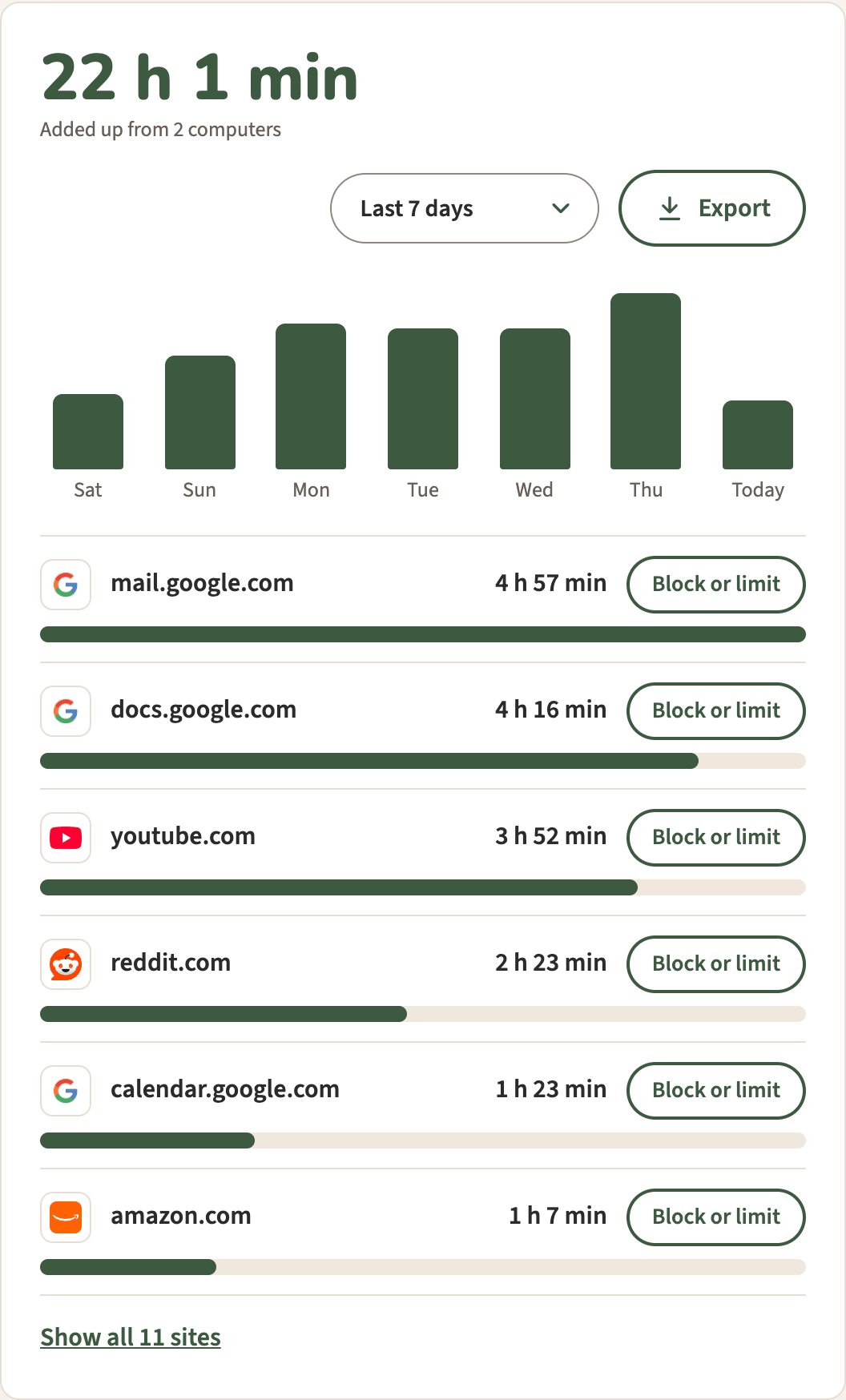
- Look at your time. Select the Pawsome Family button in the toolbar, then Screen time ›. Choose Today, Last 7 days or Last 30 days.
The full setup is in how to track your time in Chrome automatically.
What gets counted
- Only the tab on your screen. Tabs left open in the background don’t count.
- Not when you step away. Counting stops after 2 minutes without the mouse or keyboard, unless a video is playing in that tab.
- Each site by its name. A site is its address without www., like youtube.com. mail.google.com and docs.google.com are two separate sites.
- Never private windows. Incognito windows are never counted.
- Never the pages. Only the site name and the minutes per day are kept, never page addresses, titles or anything on the page.
The exact rules are in what browser screen time measures.
What to do with the numbers
- Look at the top three. In the example week above, mail.google.com, docs.google.com and youtube.com lead, with just over 13 hours between them.
- Limit one site. Select Block or limit next to it, choose Daily limit and 15 min, 30 min or 1 hour, then Add to Website blocker. See how to set a daily time limit for a website.
- Check again next week. The Monday email sums up the week before, and the bars show which days ran long.
After the 30-day trial, Today, Last 7 days, the top sites and a basic Monday email with the week’s total stay free. Last 30 days, Export, Block or limit and the full Monday email come with the plan, $3.33 a month, billed yearly at $40 (or $5 billed monthly).
See your own week with Screen time
Pawsome Family’s Screen time counts the minutes each website is on your screen in Chrome and Edge, with no timers to start. It keeps only site names and minutes, never the pages you read. The help page covers every setting.
Free for 30 days, with no card needed.