Why time trackers stop counting when you step away
By Aditya Trivedi ·
Time trackers stop counting when you step away because they can’t see you. All they can notice is activity, like moving the mouse, typing or scrolling, so after a set time with none, they assume you’ve gone. Video is the tricky case, because watching needs no input. In Pawsome Family’s Screen time, the cut-off is 2 minutes, and a video playing in the tab keeps it counting.
We make Pawsome Family, a Chrome and Edge extension whose Screen time counts how long each website is on your screen. Here is how idle detection works in general, and exactly how ours decides.
Two ways to tell you’ve stepped away
The computer’s idle signal
Chrome gives extensions a system-wide idle signal. An extension sets how long the computer may go without input, and Chrome reports “idle” once “the user has not generated any input for a specified number of seconds”. The default is 60 seconds, and Chromium’s source code accepts anything from 15 seconds to 4 hours. It covers input anywhere on the computer, not just in the browser.
Activity in the page
The other way is to watch for activity inside the web page itself: the mouse, the keyboard, scrolling, the wheel or touch. This is what Screen time does. It doesn’t use Chrome’s idle signal, and it doesn’t see activity in other apps.
How Screen time decides, every 30 seconds
Every 30 seconds, Pawsome Family checks three things in each open page:
- Is this tab the one showing in its window? A background tab or a minimized window fails this.
- Is the page focused, with mouse, keyboard, scroll, wheel or touch activity in it within the last 2 minutes?
- Is a video playing in it?
If the tab is showing and either of the other two is true, that site gets up to 30 seconds. Otherwise, nothing is added.
Why there’s a cut-off at all
Any cut-off is a trade-off. Too short, and quiet reading gets cut off. Too long, and a coffee break counts as browsing. With 2 minutes, a site keeps counting for up to 2 minutes after your last activity, then stops.
To be honest about the cost: reading a long page without touching the mouse or keyboard for over 2 minutes stops the count until you scroll or move the mouse. A slow, careful read can come out a little short.
Why a video keeps counting
When you watch a video, you don’t touch anything, so a rule based on input alone would stop counting partway through. Chrome’s idle signal is defined by input only. In Chromium’s code for Windows and for Mac, idle time is the time since the last input event, so a playing video doesn’t appear to reset it. That’s our reading of the code, not a documented promise.
Microsoft’s docs treat video separately from input too. Windows doesn’t detect video display as activity, so video players have to ask it to keep the screen on.
Screen time checks for the video itself. A playing video keeps counting while its tab is showing, even if you don’t touch the mouse or keyboard.
Why background tabs and other apps don’t count
- Background tabs. Only the tab showing in its window counts. Ten open tabs don’t add up to ten times the time.
- Two Chrome windows side by side. Time is credited once, not twice.
- Another app in front. Activity is noticed inside the page, so working in another app while a Chrome tab sits visible beside it counts nothing, unless that tab is playing a video.
- Private windows and Chrome’s own pages. Incognito windows are never counted, and neither are the New Tab page, Settings or the Chrome Web Store.
What it means for your totals
| What you’re doing | What Screen time counts |
|---|---|
| Reading and scrolling | Yes |
| Reading without touching anything for over 2 minutes | After 2 minutes, nothing until you scroll or move the mouse |
| Watching a video in the tab | Yes, while its tab is showing |
| Walking away from the computer | Up to 2 minutes after your last activity, then nothing |
| Working in another app beside a Chrome window | Nothing, unless a video is playing in it |
| A tab in the background, or a minimized window | Nothing |
So a total is close to the time a site was in front of you and in use. It runs a little high each time you walk away, by up to about 2 minutes, and a little low for long, still reads. It never counts the hours a tab sits open behind others.
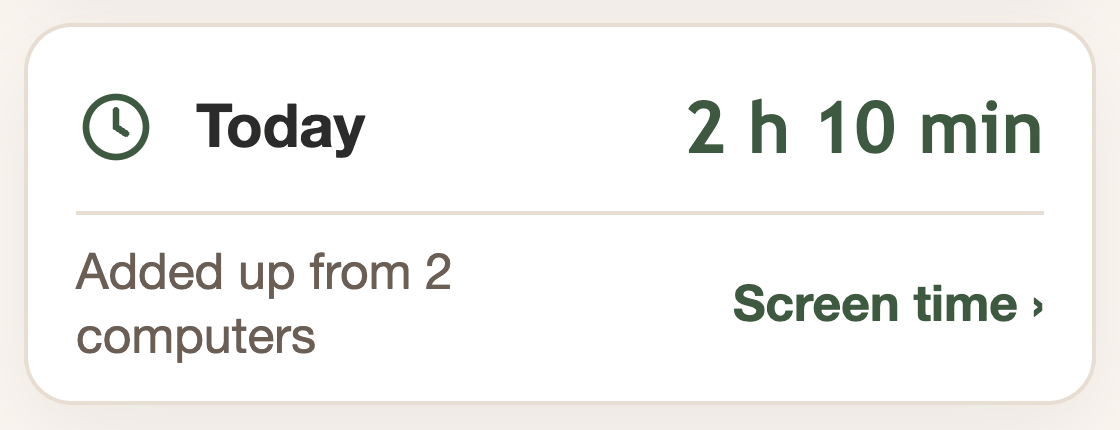
Your totals show on the Screen time page and in the toolbar menu. Counts are kept in the browser and sent to your account every 5 minutes, and whenever you open the toolbar menu.
For everything else Screen time does and doesn’t measure, see screen time for your browser. To set it up, see how to track your time in Chrome automatically, and for what to do with a week of numbers, where the workday goes.
Screen time in Chrome and Edge
Pawsome Family’s Screen time counts the minutes each site is on your screen, stops after 2 minutes without the mouse or keyboard, and keeps counting while a video plays in a tab that’s showing. Here’s exactly what it counts.
Free for 30 days, with no card needed.