Pawsome Family for Chrome and Edge

A desktop pet for Chrome that looks like your dog or cat

Add a few photos of your dog or cat, and we turn them into a desktop pet of your own. They walk, sit and nap along the bottom of your browser tabs in Chrome and Edge, with no app to install.

  • One pet free for 30 days
  • No account needed to try
  • No card needed

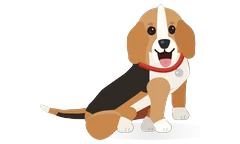
This beagle is an example. Yours is drawn from your own photos.

How it works

Photos in, your pet out, in about a minute.

  1. Add 1 to 5 photos

    A side view and a face photo of your dog or cat give the closest likeness.

  2. See them move

    About a minute later, your pet walks, sits and naps. Keep them, and we spend about 3 more minutes on the finer details.

  3. Add it to your browser

    Add Pawsome Family to Chrome or Edge. Your pet comes along, right at the bottom of your tabs.

Add my pet Takes about a minute.

Add it to Chrome in three steps

Once your pet is made, this is how they get into your tabs.

  1. Add the extension

    In the Chrome Web Store, select Add to Chrome, then Add extension. In Edge Add-ons, select Get, then Add extension.

  2. Connect your pet

    Open the Pawsome Family button in the toolbar. If it asks, select Connect my pet. Pin the button from the puzzle-piece Extensions icon to keep it in view.

  3. Reload open tabs

    Tabs that were open before you added the extension need a reload. In every new tab, your pet is already there.

The full walkthrough, with fixes if your pet doesn’t show: how to add a pet to Chrome.

What your pet can and can’t do in Chrome

Your pet lives inside the browser, so Chrome sets a few limits.

What it does

  • Lives in your tabs. Your pet walks, sits and naps along the bottom of almost any web page.
  • Rests when you do. They nap when you leave the mouse still, and stop moving in background tabs.
  • Gets the zoomies. About once an hour, a few quick laps along the bottom of the tab, then a rest. You can turn them off.
  • Steps aside. Hide your pet on any site or in full screen, and set their size from 40 to 120 px.
  • Runs on your computer. Chrome on Mac, Windows, Linux and Chromebooks, and Edge on Mac, Windows and Linux.

What it can’t do

  • Visit Chrome’s own pages. Chrome doesn’t let any extension draw on the New Tab page, Settings or the Chrome Web Store. Open a website, and your pet is back.
  • Leave the browser. Your pet stays inside Chrome’s window, not on your desktop or in other programs.
  • Walk in private windows, unless you allow it. Incognito windows show your pet once you switch on Allow in Incognito on Chrome’s Extensions page.
  • Come to your phone. Pawsome Family runs on computers, not on phones or tablets.

Desktop pet or browser pet?

Both put a screen pet on your computer. They differ in where it lives and what you install.

A downloadable pet

  • Where it lives. Your whole screen, on top of any program. Many climb the edges of windows.
  • What you install. A program for Windows or Mac. The classic shimeji also needs Java.
  • Works on. Windows, Mac or both, depending on the pet. Most don’t install on a Chromebook.
  • Good for. Days spent in many different programs. Our guide to desktop pets for Mac and Windows lists ten, and our shimeji guide covers the classic.

Pawsome Family, in your browser

  • Where it lives. Along the bottom of your browser tabs, on almost any web page.
  • What you install. No app to install. You add it from the Chrome Web Store or Edge Add-ons.
  • Works on. Mac, Windows, ChromeOS and Linux.
  • Out of the way. Your pet naps when you’re idle, hides on any site you choose, and comes in any size from 40 to 120 px.
  • Good for. Days spent mostly in a browser.

Made from your own pet

Your pet is drawn from your photos, not picked from a list of breeds.

  • From your photos. Coat, markings, ears, tail and eye color all come from the pictures you add. Mixed breeds work too.
  • Photos that work best. A full side view in daylight and one photo of the face, taken at your pet’s eye level.
  • Yours to fix. If something looks off, change the coat, ears, tail, pattern or eye color yourself, or try other photos.
  • Other ways to do it. You could also draw your pet yourself or hire an artist. We compare three ways to get a pet that looks like yours.

On a work computer or a Chromebook

At work

There’s no program to install and no admin password to ask for, though some companies limit which extensions you can add. Turn on Hide in full screen, and your pet steps out of presentations. More on keeping a pet on a work computer.

On a Chromebook

Most downloadable pets don’t install on ChromeOS. Pawsome Family does, because a Chromebook adds Chrome extensions like any other computer. On a school or work Chromebook, the administrator decides what you can add. More on pets on a Chromebook.

Free for 30 days. Then $3.33 a month.

Billed yearly at $40, or $5 billed monthly. Taxes included. The free trial covers one pet; the plan covers up to 5. No card needed to start.

Questions

Something else? Email us.

Is there a desktop pet for Chrome?

Yes. Pawsome Family is a Chrome extension that turns photos of your own dog or cat into a desktop pet. They walk, sit and nap along the bottom of your tabs on almost any website. It works in Edge too.

Is it a desktop app?

No. Pawsome Family is a browser extension for Chrome and Edge, so there’s no app to install. Your pet appears along the bottom of almost any web page you open, and only inside your browser.

Does it work on Mac and Windows?

Yes. It runs in Google Chrome on Mac, Windows, ChromeOS and Linux, and in Microsoft Edge on Mac, Windows and Linux. It doesn’t run on phones or tablets.

Does it work on a Chromebook?

Yes. A Chromebook adds Chrome extensions like any other computer, so your pet walks along your tabs there too. On a school or work Chromebook, the administrator decides which extensions you can add.

Will it get in the way of my work?

It’s made not to. Your pet keeps to the bottom edge, naps when you leave the mouse still, and stops moving in background tabs. From the toolbar you can hide them on a site. Under Pet settings you can also hide them in full screen, pause them for an hour, or change their size.

Can I have more than one pet?

Yes. The plan covers up to 5 pets, dogs and cats together, each drawn from their own photos. They can all walk together, and you choose who’s out in each browser. The free trial covers one pet.