How to cut your social media time in half
By Aditya Trivedi ·
To cut your social media time in half, measure a normal week first, then give the one or two sites that take the most time a daily limit of about half your current average. Once the limit is used, the site stays blocked until midnight, so you decide once instead of every time you’re tempted. Check the numbers again after a week and adjust. Studies suggest sudden, strict caps are hard to keep, so a cut you can stick to is a better bet than quitting overnight.
We make Pawsome Family, a Chrome and Edge extension whose Screen time counts how long each website is on your screen, with a website blocker built in. The steps below use both, on a computer. Nothing here is medical advice.
Step 1: Measure a normal week
Don’t change anything yet. Most of us can’t guess our own screen time well: a 2021 review of dozens of studies found that people’s estimates rarely matched what their devices logged, and they missed in both directions.
Once it’s on, Screen time counts on its own while you browse. A site counts only while its tab is on screen, and counting stops after 2 minutes without the mouse or keyboard, unless a video is playing. After a week, open Screen time in the app, under Pawsome tools, and choose Last 7 days. How to see the time you spend on each website walks through the page.
Step 2: Pick the one or two biggest sites
Each site is counted by its name, without “www.”, so look for entries like reddit.com, instagram.com, facebook.com, x.com or youtube.com. A different subdomain is its own site, so add those together if you use more than one.
Then pick the one or two at the top. Halving the biggest site often saves more time than trimming five small ones. Divide each site’s time by 7 for a rough daily average.
Step 3: Set a daily limit at about half
| Your daily average | A limit of about half |
|---|---|
| 30 minutes | 15 min |
| 1 hour | 30 min |
| 2 hours | 1 hour |
| Something else | Type your own number of minutes |
For example, if reddit.com shows 7 hours over the last 7 days, that’s about an hour a day, and half is 30 min.
- On the Screen time page, select Block or limit next to the site.
- Choose Daily limit, then 15 min, 30 min or 1 hour.
- Select Add to Website blocker.
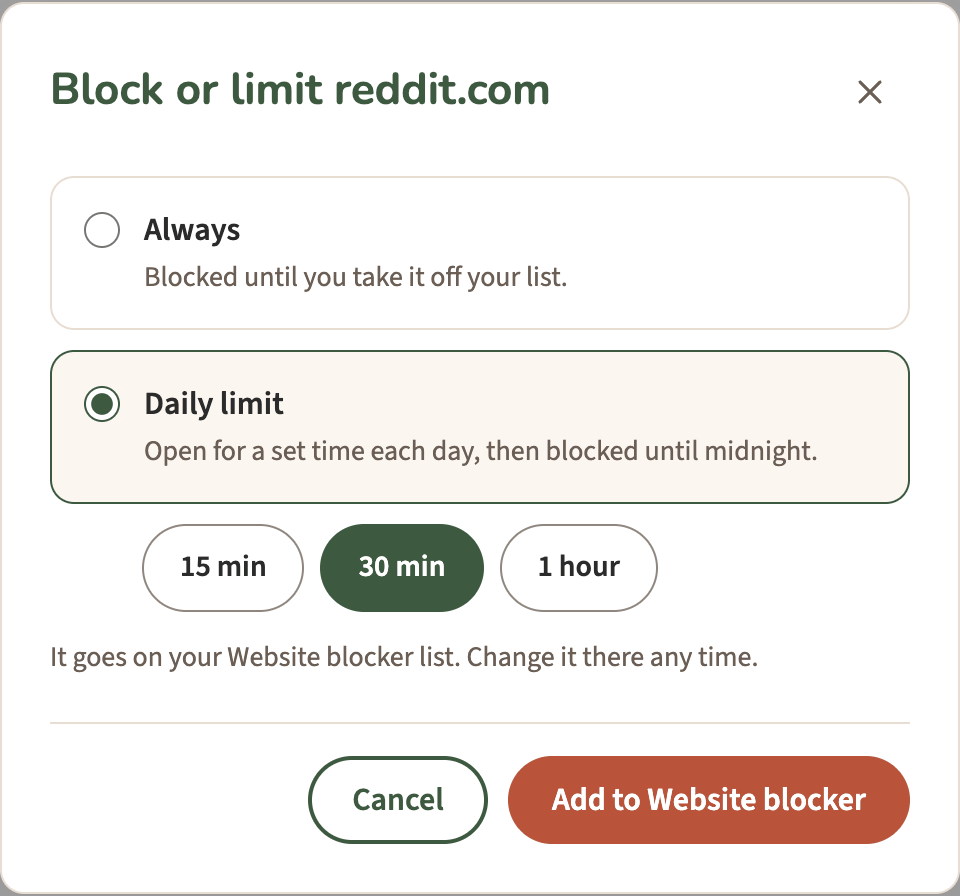
For any other number, open Website blocker under Pawsome tools, select Edit under the site, and type the minutes. The time counts only while the site is on screen, and it starts again at midnight. When 5 minutes are left, your pet says so. How to set a daily time limit for a website covers every setting.
Step 4: Check the Monday email, then adjust
Every Monday at 8 am your time, Screen time emails you a summary of the week before: the total, the change from the week before, and your top 5 sites. It shows at a glance whether the week went down.
After a week or two, look again:
- The site is blocked by mid-morning every day. The limit may be too tight to keep. Raise it a little rather than removing it.
- You never reach the limit. It may be higher than you need. Lower it a step.
- The time moved to another site. If a new site climbs the list, give it a limit too.
Don’t forget your phone
Screen time counts and limits sites in Chrome and Edge on computers, not on phones. For your phone, use its own settings:
- iPhone: open Settings, then Screen Time, then Time Allowances. Older versions call these App Limits. Apple’s guide has the steps.
- Android: Settings, then Digital Wellbeing, shows the time on each app and, for Chrome, on each website. Next to a website, Set site timer adds a limit. Google’s guide has the steps, which vary by device.
What the research says, modestly
- Strict caps are hard to keep. In a 2018 study, 143 students who limited three social apps to 10 minutes each a day for three weeks reported less loneliness and depression than a control group. In 2026, a team reported four attempts to repeat it with young adults, using 30-minute and 60-minute limits. Few people kept to them: in the first three studies, only about 1 in 10 stayed under 30 minutes for even one week, and there were no meaningful differences in well-being. The authors say that with so few keeping to the limits, they can’t tell what happens when people really cut back. That paper is still in press.
- Using less tends to last a while. In a 2020 study, US adults paid to deactivate Facebook for four weeks gained about an hour a day. Weeks later, they still used its app about 22% less than a control group, and their well-being had risen slightly. Larger later experiments also found small improvements in mood on average.
- Tracking helps most with a goal. A review of 138 experiments found that monitoring progress toward a goal helped people reach it by a modest amount, mostly for health goals. But in a small study, pop-up notices about heavy phone use didn’t cut screen time. Seeing the number alone may not be enough, which is why this plan pairs it with a limit.
For why deciding ahead of time helps, see why blocking a site works better than willpower.
After the free trial
Today, Last 7 days, your top sites and a basic Monday email with the week’s total stay free, so you can keep measuring. Block or limit, daily limits and the full Monday email come with the plan. Without it, daily limits are paused but kept, and sites set to Always stay blocked for free.
See your numbers with Screen time
Pawsome Family’s Screen time counts the minutes each site is on your screen in Chrome and Edge, and Block or limit turns any site on your list into a daily limit. After the trial, the plan is $3.33 a month, billed yearly at $40 (or $5 billed monthly). Here’s how it works.
Free for 30 days, with no card needed.