How to block websites during work hours in Chrome and Edge
By Aditya Trivedi · Updated
To block websites during work hours, use a website blocker that blocks on a schedule. You pick the days and a start and end time. During those hours the site shows a blocked page, and outside them it opens as usual. Chrome and Edge can’t do this on their own. In Pawsome Family, set the site to Days and times, pick Monday to Friday, and choose 9:00 am to 5:00 pm.
We make Pawsome Family, a Chrome and Edge extension with a website blocker, so the steps below use it. To compare other blockers first, including free ones, see the best free website blockers for Chrome. Steps checked against the app on November 16, 2026.
Before you start
New to Pawsome Family? Go to pawsome.family/website-blocker, select Try it free and sign in with Google or an email link. No card is needed. Then add the extension: in Chrome, select Add to Chrome, then Add extension. In Edge, select Get, then Add extension.
Already have it? Open the Pawsome Family app and select Website blocker under Pawsome tools.
How to set a work-hours schedule, step by step
- Add the site. Type it, like youtube.com, and select Add.
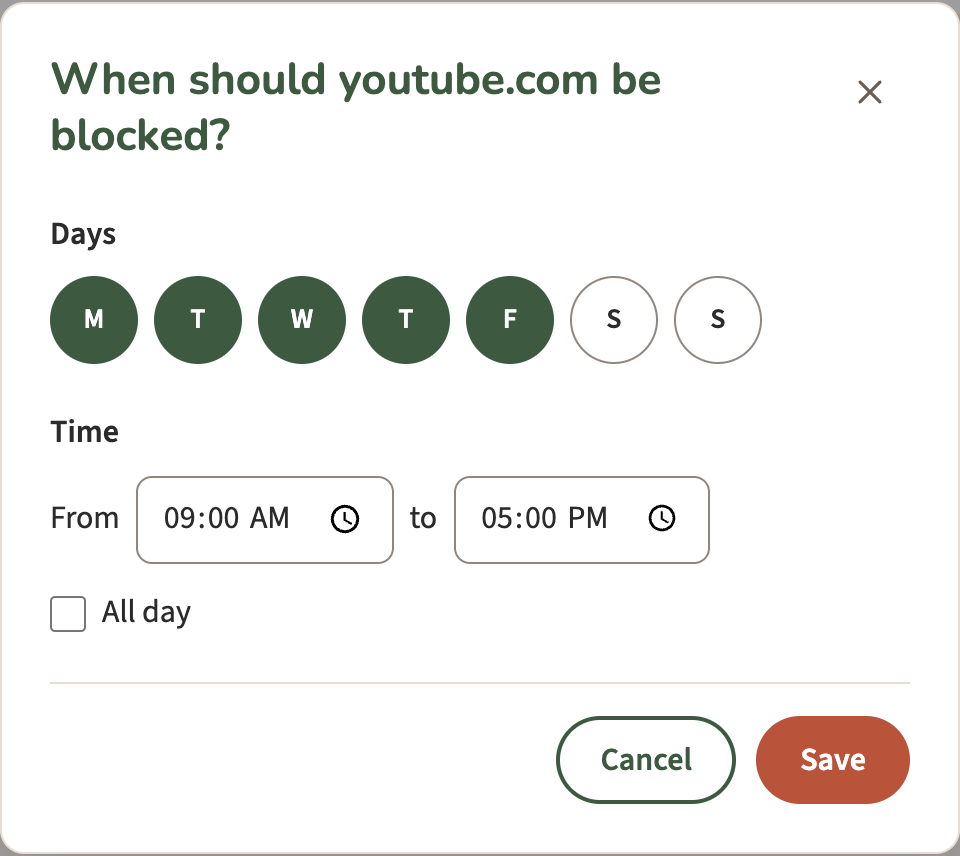
- Select Days and times next to it. A window opens: “When should youtube.com be blocked?”
- Pick the days. For a normal week, tap M, T, W, T and F. Tap a day again to drop it.
- Set the time. Under Time, choose From 9:00 am to 5:00 pm. To block the whole day instead, tick All day.
- Select Save. The line under the site now reads “Mon to Fri, 9:00 am to 5:00 pm”.
- Do the same for each site. Every site gets its own days and times, so the news can be blocked all morning and a video site all day.
- Try it. Open the site during work hours. You’ll see a calm page that says when it opens again, like “It opens again at 5:00 PM.”
To change the hours later, select Edit under the site. To stop blocking it, remove it with the × next to it.
A few things to know:
- One time range per site. For a free lunch hour, block 9:00 am to 12:00 pm, or give the site a daily limit instead.
- Your computer’s clock decides. The schedule follows the time on the computer you’re using, so it moves with you if you change time zones.
- Night shifts work too. A time that ends before it starts runs overnight. 10:00 pm to 6:00 am on Mon to Fri blocks from 10 pm on each of those days to 6 am the next morning.
Schedules to try
| Goal | Days | Time |
|---|---|---|
| A normal workday | Mon to Fri | 9:00 am to 5:00 pm |
| Quiet mornings, free lunch | Mon to Fri | 9:00 am to 12:00 pm |
| Deep work, two days a week | Tue and Thu | All day |
| A night shift | Mon to Fri | 10:00 pm to 6:00 am |
| Keep work out of the weekend | Sat and Sun | All day, on your work email or chat |
That last one turns it around: blocking a work site on weekends is as useful as blocking a fun one on weekdays.
Why blocking by the clock helps
Gloria Mark and colleagues at UC Irvine and Microsoft Research logged the computers of 40 office workers for two weeks. The median time on one screen before switching was 40 seconds, and on days when focus was shorter, people rated their own work as less productive. That was 40 people at one company, and it shows a link rather than a cause.
The same team then blocked distracting sites for 32 office workers for a week. With the sites blocked, people focused for longer and rated themselves more productive, and those most pulled in by social media gained the most. But some worked longer without taking breaks and reported more stress. It was a small study with no control group.
So leave yourself breaks. A block from 9 to 12, for example, keeps the morning clear and leaves lunch open. Our post on why blocking works better than willpower has more of the research.
Tips
- Block the two or three sites you drift to, not fifty. You’ll know them by the second day.
- Need a site for work? Block only part of it, like youtube.com/shorts, or give it a daily limit.
- Make it harder to switch off. With the plan, Lock means a site can be unblocked only on your Website blocker page, not with one click from the toolbar menu at 2 pm.
- Working from home? The same schedule works on a home computer. Our post on working from home with a dog or cat covers the other interruptions.
Questions
Can Chrome or Edge block websites during work hours without an extension?
No. Neither browser can block a site on a schedule. Your computer’s hosts file and the blocklist setting for managed computers block a site all the time, not by the hour. How to block websites on Chrome and Edge covers both.
Is there a free way to block sites during work hours?
Pawsome Family’s Days and times are free for 30 days, with no card, and then come with the plan. Some other blockers include schedules for free. The best free website blockers for Chrome compares what each one gives you without paying.
Can each site have different hours?
Yes. Every site has its own days and its own time range.
What happens if I open a blocked site during work hours?
You see a page that says you asked to block it and when it opens again, with an Open Website blocker button and a small dog along the bottom. Outside your hours, the site opens as usual.
Does it block sites on my phone or in other browsers?
No. It works in Chrome and Edge on computers. Phones, tablets and other browsers aren’t covered. In incognito windows, it works only if you switch on Allow in Incognito on the browser’s Extensions page.
After the free trial
Days and times come with the plan. If the trial ends without one, your schedules are kept but paused, and sites set to Always stay blocked for free. Get the plan, and the schedules come back as they were.
A website blocker with a dog in it
Pawsome Family’s website blocker blocks the sites you choose in Chrome and Edge: always, on the days and times you pick, or after a daily limit. A small dog walks along the bottom of the blocked page. Here’s every setting.
Free for 30 days, with no card needed.