How to block websites on Chrome and Edge
By Aditya Trivedi ·
Chrome and Edge have no built-in way for you to block a website. The simplest way is a website blocker extension. You add the site to its list, and the browser shows a blocked page whenever you open it. Without an extension, you can block a site for the whole computer by editing its hosts file. On a computer you manage, the browser’s own blocklist setting can do it too.
We make Pawsome Family, a Chrome and Edge extension with a website blocker, so we use it for the steps below. The other ways work without it. Steps checked on November 11, 2026.
Why there’s no Block button
Chrome’s site settings control what a site may do, like send notifications, open pop-ups or see your location. None of them stops a site from loading. Edge’s settings don’t have one either. The built-in ways to block sites are meant for computers run by a company, school or parent, and they’re covered further down.
The quick way: a website blocker extension
With Pawsome Family:
- Sign up. Go to pawsome.family/website-blocker and select Try it free. Sign in with Google or an email link. No card is needed.
- Add the extension. The Website blocker page asks you to add Pawsome Family to your browser. In Chrome, select Add to Chrome, then Add extension. In Edge, select Get, then Add extension.
- Add a site. Type it, like youtube.com, and select Add.
- Choose how it’s blocked. Always, Days and times (like weekdays, 9 to 5), or a Daily limit (like 30 minutes a day).
- Try it. Open the site. You’ll see a calm page that says it’s blocked and when it opens again.
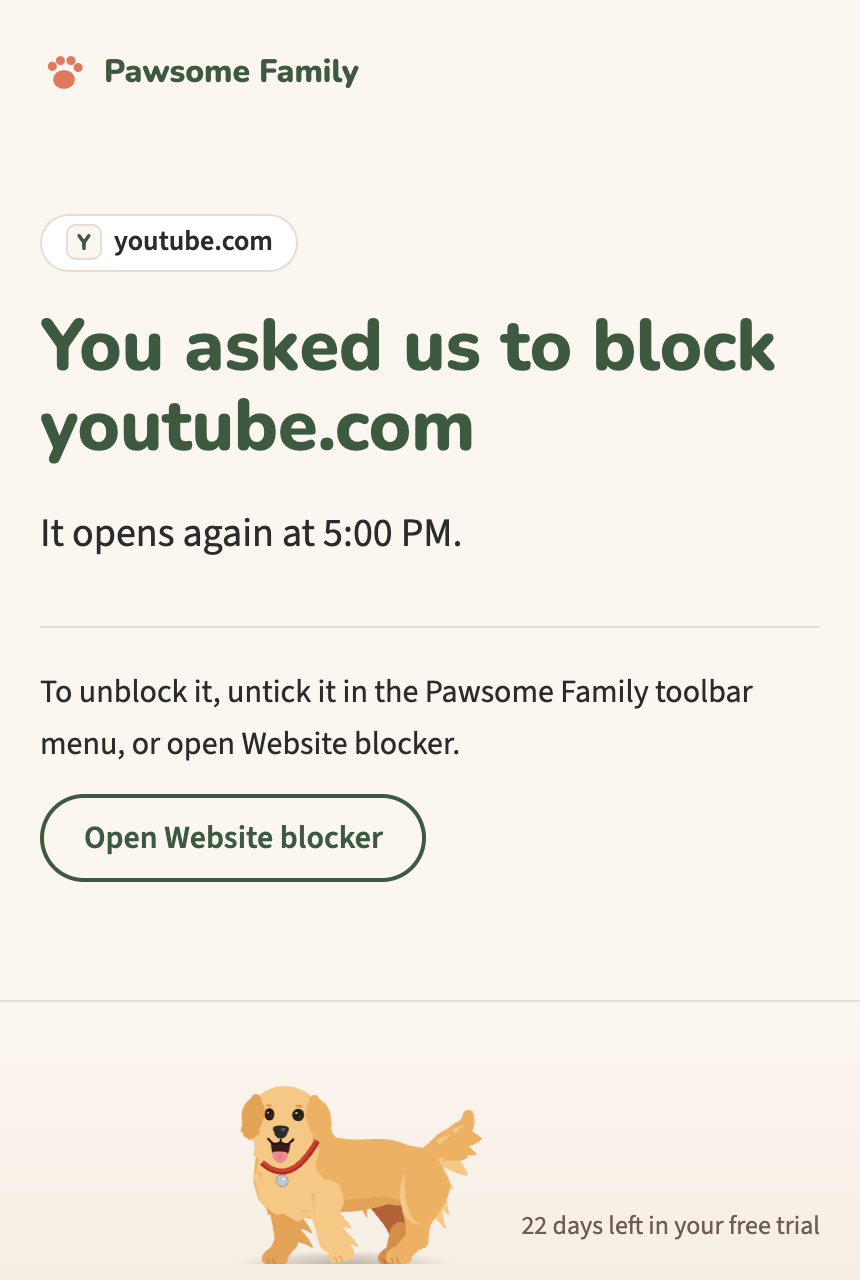
You can also block the site you’re on without opening the app. Select the Pawsome Family button in the toolbar and switch on Block, or right-click your pet and select Block.
A few things to know:
- Only what you type is blocked. youtube.com covers www.youtube.com, but not music.youtube.com. Add that too if you want it gone.
- A path blocks only that part. youtube.com/shorts blocks Shorts and leaves the rest of YouTube open. See how to block YouTube on your laptop.
- Incognito windows are blocked only if you allow the extension there. On Chrome’s Extensions page, choose Details under Pawsome Family and switch on Allow in Incognito.
- To unblock a site, untick it in the toolbar menu, or remove it with the × on the Website blocker page.
For other extensions that do the same job, see the best free website blockers for Chrome.
Without an extension: the hosts file
Your computer’s hosts file tells it where to find a website before it asks the internet. Point a site at your own computer, and it won’t load in any browser. You need an administrator password.
On Windows:
- Search for Notepad, right-click it and choose Run as administrator.
- Open the file C:\Windows\System32\drivers\etc\hosts. Choose All files in the file picker, or you won’t see it. Microsoft’s page on the hosts file has its location and format.
- At the bottom, add one line per address, like 127.0.0.1 youtube.com and 127.0.0.1 www.youtube.com. Each address needs its own line, because the hosts file has no wildcards.
- Save, then open Command Prompt and run ipconfig /flushdns so Windows forgets the old address.
On a Mac: open Terminal, type sudo nano /etc/hosts, enter your password, add the same lines, and save with Control-O. Then run sudo dscacheutil -flushcache.
Chrome checks the hosts file before it looks a site up, even with secure DNS turned on, as its own code shows. If a site still opens, quit and reopen the browser.
The downsides: there’s no schedule, every subdomain needs its own line, and undoing it means editing the file again.
On a computer you manage: the blocklist setting
Both browsers have a setting called URLBlocklist, “Block access to a list of URLs”. It’s made for computers that a company or school sets up, through Group Policy or the registry on Windows, or a configuration profile on a Mac.
- Chrome: Google explains how to set it and how to write the addresses. example.com blocks the site and all its subdomains. example.com/stuff blocks only addresses that start with /stuff.
- Edge: Microsoft’s URLBlocklist page gives the registry and Group Policy details, for up to 1,000 entries.
Google describes it for managed browsers, so on a home computer, test it after you set it.
For a child’s account
- Google Family Link lets a parent block sites in Chrome on Android, Chromebook, Windows, Mac and Linux. On a computer, the child can still sign out of Chrome or switch profiles, and other browsers aren’t covered.
- Microsoft Family Safety filters sites in Edge and blocks other browsers while the filter is on. An adult in the family group can switch their own settings off, so it doesn’t work as a lock on yourself.
Which way to choose
| Extension | Hosts file | Blocklist setting | Family controls | |
|---|---|---|---|---|
| Setup | A minute | A few minutes, admin password | Admin tools | A family account |
| Works in | That browser | Every browser on the computer | That browser | Chrome or Edge, for the child |
| On a schedule | Yes, with most | No | No | Depends |
| Hard to undo | No | A little | Yes, without admin | For the child |
For most people, an extension is enough. For a block that’s hard to get around, see Cold Turkey vs a browser website blocker.
A website blocker with a dog in it
Pawsome Family’s website blocker blocks the sites you choose in Chrome and Edge, with a calm page and a small dog called Milo in their place. Addresses are checked on your computer, and the pages you visit are never recorded or sent. The help page covers every setting.
Free for 30 days, with no card needed.