How to add a pet to Chrome, step by step
By Aditya Trivedi ·
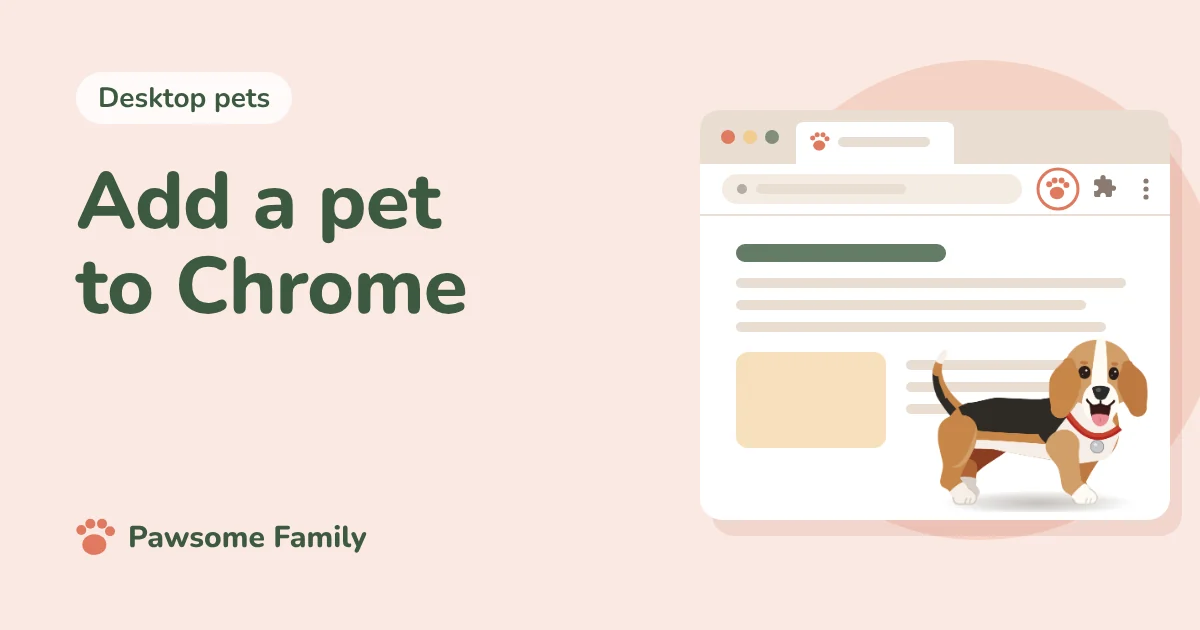
To add a pet to Chrome, you make your pet from photos, add the Pawsome Family extension from the Chrome Web Store, pin it to the toolbar, and connect it to your account. Then reload any open tabs. Your pet walks along the bottom of every web page, and the toolbar button leads to every setting, from their size to when they nap. The whole thing takes a few minutes.
We make Pawsome Family, so these are our own steps, with the button names as you’ll see them.
What you need
- Chrome or Edge on a computer: Mac, Windows, Linux, or Chrome on a Chromebook. Extensions don’t run in Chrome on phones or tablets.
- 1 to 5 photos of your dog or cat. A full side view, standing, and one of the face work best.
1. Make your pet
- Go to pawsome.family and add your photos. You don’t need an account to try.
- Each photo gets a green tick, or a red mark with the reason. Swap any red ones.
- About a minute later, you meet your pet walking, sitting and napping.
- If you like them, keep them and sign up. We then spend about 3 more minutes on the finer details.
For what each photo does, see how a photo becomes a desktop pet.
2. Add the extension
In Chrome:
- Open Pawsome Family in the Chrome Web Store.
- Select Add to Chrome.
- Chrome lists what the extension is allowed to do. Select Add extension.
In Edge:
- Open Pawsome Family on Edge Add-ons.
- Select Get, then Add extension.
Chrome warns that the extension can “read and change all your data on all websites.” Any extension that draws on web pages shows that. Ours only draws your pet. It never reads, records or sends the pages you visit. Our article on what that warning means explains more.
3. Pin it to the toolbar
- Select the Extensions icon next to the address bar. It looks like a puzzle piece.
- Find Pawsome Family and select the pin.
The paw button now sits in your toolbar. It’s where you control your pet.
4. Connect your pet
Open the Pawsome Family button. If it says “Connect your pet to see them walk along the bottom of every tab,” select Connect my pet.
Your free trial started when you signed up: 30 days for one pet, with no card. Your pet’s page shows the days left.
5. Reload your tabs
Tabs that were open before you added the extension need a reload. Open any website, and your pet walks along the bottom.
Your pet won’t appear on Chrome’s own pages, such as the blank New Tab page, Settings or the Chrome Web Store. Chrome doesn’t let any extension draw there.
6. Make them yours
From the toolbar button you can hide them on one site, or everywhere. Its Pet settings › link opens the rest, where you can:
- Change their size, from 40 to 120 pixels tall.
- Hide them in full screen, so they step out of videos and presentations.
- Pause them for an hour.
- Choose who walks, if you have more than one pet.
When you leave the mouse still for a couple of minutes, your pet curls up for a nap. In background tabs, they stop moving completely.
If your pet doesn’t show
Work through these in order:
- Reload the tab, and make sure it’s a normal website.
- In the toolbar menu, turn on Show my pet, and check Hide on this site is off.
- Under Pet settings ›, if it says Paused until, select Resume now.
- In Chrome’s Manage extensions, open Details on Pawsome Family and set site access to On all sites.
- In Incognito, turn on Allow in incognito on the same page.
Our help page on why your pet isn’t showing has the full list.
On a work or school computer
If Chrome says the extension is blocked by your administrator, your organization decides what you can add. Ask your IT team. See can you keep a desktop pet at work?
Ready when you are
Pawsome Family turns 1 to 5 photos of your own dog or cat into a desktop pet for Chrome and Edge that walks along the bottom of your tabs. See an example beagle or orange tabby.
One pet is free for 30 days, with no card needed.