What is a browser extension? A plain guide
By Aditya Trivedi ·
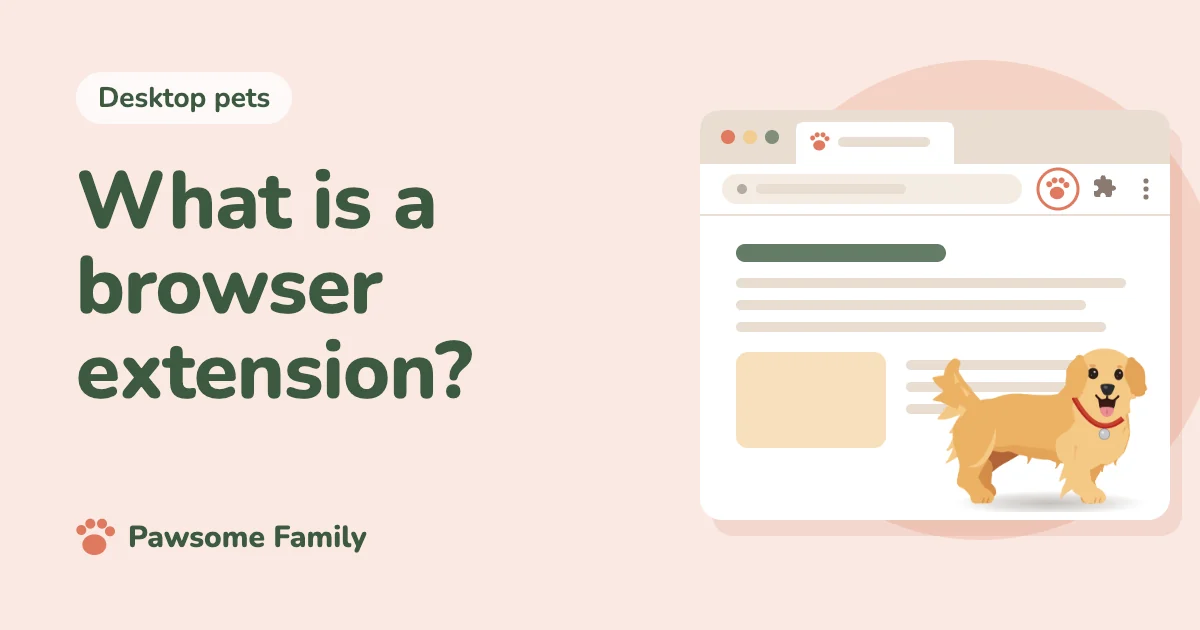
A browser extension is a small add-on that gives your web browser a new feature. You install it from your browser’s store, such as the Chrome Web Store or Edge Add-ons, and it then works inside the browser: it might fill in passwords, check your spelling, translate a page, or put a small animated pet along the bottom of your tabs. You can turn an extension off or remove it at any time.
We make Pawsome Family, which is an extension for Chrome and Edge, so we have been through the store process ourselves. This guide explains extensions in plain words.
What an extension is
Your browser is the program you use to visit websites. An extension is a smaller program that runs inside it and adds one thing the browser doesn’t do on its own. Google’s help page on installing and managing extensions shows how to add, turn off and remove them.
Each extension usually shows up as an icon in the toolbar, to the right of the address bar. In Chrome, extensions you haven’t pinned sit under the puzzle-piece icon.
What extensions can do
Extensions come in all kinds. Common ones:
- Fill in passwords and other saved details.
- Check spelling and grammar as you type.
- Translate pages or words.
- Block ads or trackers on websites.
- Save pages, links or notes for later.
- Change how the browser looks, from themes to a pet walking along your tabs.
Some work on every website, some only on certain sites, and some only when you click their icon.
What extensions can’t do
An extension works inside the browser, not across your whole computer. It can’t change other programs. It also doesn’t work in every browser: Chrome extensions run in Chrome, and in many browsers built on the same base, such as Edge, Brave and Vivaldi.
Where to get them
The safe places are the official stores:
- Chrome: the Chrome Web Store.
- Edge: Edge Add-ons. Edge can also add extensions from the Chrome Web Store once you allow extensions from other stores, as Microsoft’s guide to Edge extensions explains.
Extensions in the stores must follow the stores’ rules, and Chrome’s Safety Check can warn you about extensions that might pose a risk. Avoid installing extensions from files sent to you or from sites outside the stores.
How to add one
- Open the extension’s page in the store.
- Select Add to Chrome (or Get in Edge Add-ons).
- Read the list of what the extension can access, then select Add extension.
- Pin it to the toolbar if you want it in view.
Our guide on how to add, pin and remove Chrome extensions goes through each step with the menu names Chrome shows today.
Permissions: what the warning means
When you add an extension, the browser shows what it will be able to do. Some ask for very little. Others need to run on every website, and the warning says so. For example, Chrome shows “Read and change all your data on all websites” for any extension that runs on every page, even one that only draws a picture. Our guide to what that warning means explains when it’s normal and when to be careful.
After you add an extension, you can limit where it runs. In Chrome, open the extension’s Details and choose On click, On specific sites or On all sites under Site access.
How to check an extension before you add it
- Who made it? The store page names the developer. Look for a website and a privacy policy.
- What do reviews say? Read the recent ones, not just the star rating.
- Does the access match the job? A spelling checker needs to read what you type. A theme doesn’t.
- Is it kept up to date? The store page shows when it was last updated.
How to see your extensions
In Chrome, select the Extensions icon (the puzzle piece), then Manage extensions. Typing chrome://extensions in the address bar opens the same page. Each extension has a switch to turn it off, Details to see its settings, and Remove.
It’s worth looking through the list now and then. Remove anything you don’t use any more.
Do extensions slow down the browser?
Each extension uses a little memory, and a lot of them together can add up. Most people won’t notice a few. Our post on whether Chrome extensions slow down Chrome has more detail.
Common questions
Are browser extensions free? Many are. Some are free to try and then ask for a subscription.
Do extensions work on phones? Pawsome Family runs in Chrome and Edge on computers, not on phones or tablets. Check each extension’s store page for where it runs.
Is an extension the same as an app? Not quite. An app runs on its own. An extension only works inside the browser.
If I remove an extension, is it gone? Yes, from that browser. Any account you made with its company stays until you delete it there.
A pet that lives in your browser
Pawsome Family is a browser extension that turns photos of your own dog or cat into a screen pet that walks, sits and naps along the bottom of every tab in Chrome and Edge. Read about desktop pets, or see an example golden retriever or tuxedo cat.
One pet is free for 30 days, with no card needed.