How to animate a photo of your dog or cat
By Aditya Trivedi ·
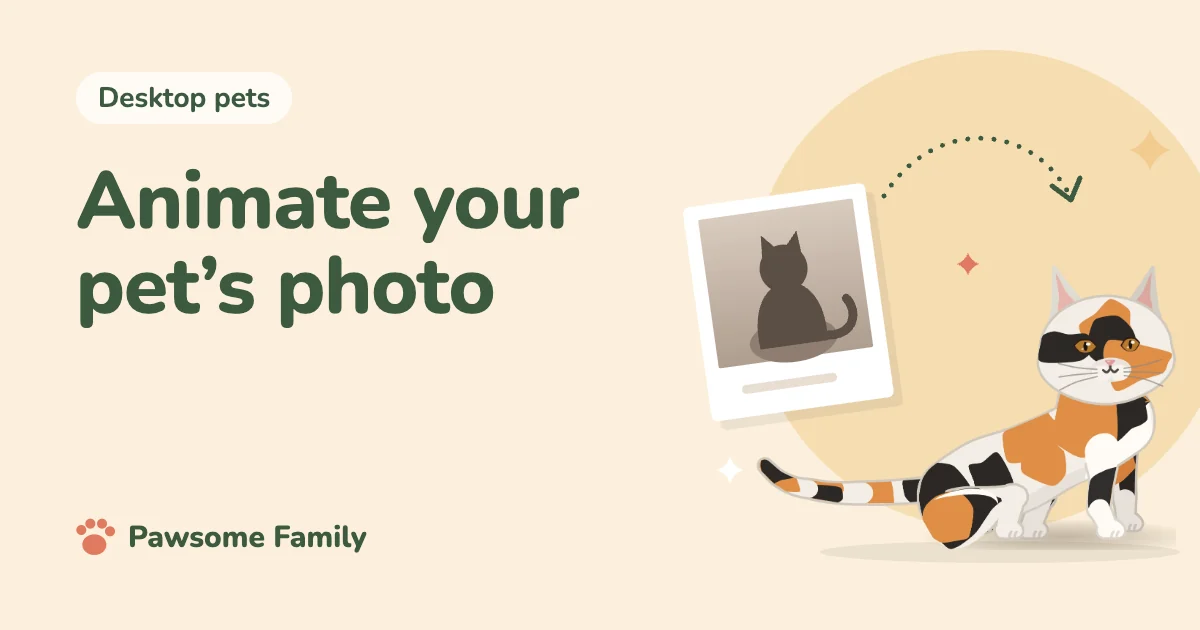
You can animate a photo of your dog or cat in four main ways: loop a Live Photo on your phone, make a short clip with a photo-to-video tool, draw the frames yourself, or have the photo turned into a cartoon pet that keeps walking. The first two make the photo itself move for a few seconds. The last two give you a drawing instead of a moving photo, but it can keep going.
We make Pawsome Family, the last of those. We don’t make a photo-to-video tool, so for those we’ll describe what to expect in general and won’t name any.
The four ways, side by side
| Way | Starts from | You get | Best for |
|---|---|---|---|
| Loop a Live Photo | A photo taken as a Live Photo | A few seconds, repeating | Something quick to share |
| Photo-to-video tool | Any one photo | A short generated clip | A one-off moment |
| Draw the frames | Your photo, traced | A looping cartoon | People who enjoy drawing |
| Animated pet from photos | A side view and a face photo | A cartoon that walks, sits and naps | Keeping them on your screen |
Loop a Live Photo
If you took the photo on an iPhone with Live Photos on, it already holds a moment of movement. Open it in the Photos app, tap the Live button and choose Loop or Bounce (Apple’s guide). Loop repeats the action, and Bounce plays it forward and back.
This only works for photos taken that way, so an ordinary still stays still. Many Android phones can record a similar moving photo, but the name and the setting differ by maker, so look in your camera’s settings.
Make a clip from one photo
Photo-to-video tools take a single still and generate a few seconds of movement. The tool has to invent everything the photo doesn’t show, and with a pet that’s a lot. Watch for these:
- Legs. Hidden legs are guesses, so their number and shape can drift.
- Markings. A white chest or a face stripe can move or fade.
- Ears and tail. They can change shape from one moment to the next.
To give the tool its best chance, use a sharp photo in good light, with your whole pet in view and a plain background. Our guide to better photos of your dog or cat can help. Before you upload, read what the tool does with your photos.
Draw the frames yourself
Trace your pet from a photo, then draw small changes from one frame to the next. Four frames are enough for a simple walk. Our guide to pixel art of your dog or cat walks through it. Once you’ve saved it as a GIF, see how to put a GIF on your desktop.
It takes the most patience of the four, and it gives you the most control. If you’d like a still drawing first, see how to turn a photo of your pet into a cartoon.
Why a walking pet needs more than one photo
A short clip can get by on one photo, because it only has to move for a moment. A pet who keeps walking has to show their whole body in motion, again and again. One photo shows one side and hides the rest.
That’s why we ask for these, in order of importance:
- A full side view, standing. The whole body, nose to tail. This gives us the legs, the body, the tail and the ears.
- A photo of the face, taken straight on. This gives us the face and its markings.
- The other side, if the markings there are different.
You can add up to 5 photos. Each one gets a green tick or a red mark with the reason, such as blurry, dark or cut off. There’s more on which photos work best.
What you get from us
About a minute after you add your photos, you meet your pet, walking. Keep them, and we spend about 3 more minutes on the finer details. Colors and markings come from your photos. Shape follows the breed, or the photos for a mix.
To be clear, this is a cartoon in our style, not your photo moving. Your pet lives along the bottom of every tab in Chrome and Edge, so it’s the right choice if you want them on your computer, not if you want a clip to post. We explain each step in how a photo becomes a desktop pet.
Which should you pick?
- To share something quickly: loop a Live Photo, or try a photo-to-video tool.
- To make something by hand: draw the frames.
- To have your pet on your screen every day: use an animated pet made from your photos.
Your pet, moving in every tab
Pawsome Family is a screen pet made from your own dog or cat, and a desktop pet drawn from your photos, which walks, sits and naps along the bottom of every tab. See an example calico cat or black Labrador.
One pet is free for 30 days, with no card needed.