Digital pet Chrome extension: how it works in your browser
By Aditya Trivedi ·
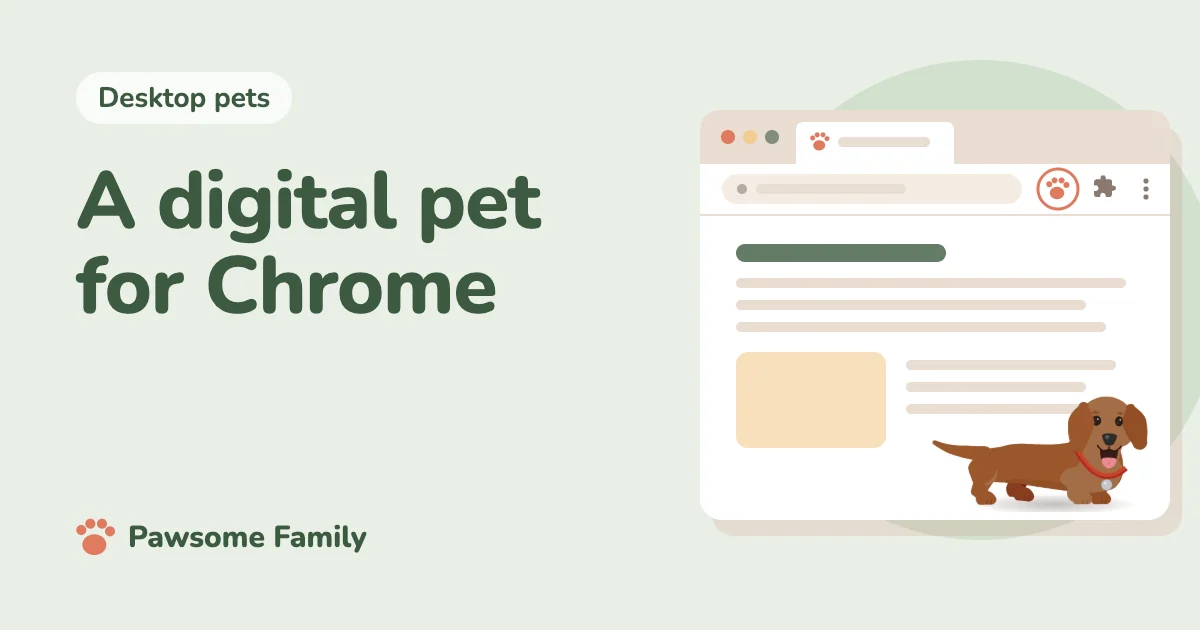
A digital pet Chrome extension adds a small animated animal to your browser. Depending on the kind, your pet walks along the bottom of the web pages you open, lives in a small window under the extension’s toolbar button, or waits on the new tab page. You add it from the Chrome Web Store in about a minute, and you can hide it, pause it or remove it whenever you like.
We make Pawsome Family, a Chrome extension that turns photos of your own dog or cat into a digital pet, so weigh what we say about it accordingly. Below is how pet extensions behave in Chrome in general, with notes on how ours works.
Four kinds of digital pet for Chrome
“Digital pet” and “virtual pet” mean the same thing: an animal or creature that lives on a screen. In Chrome, they come in four kinds.
| Kind | Where your pet lives | Good if you want |
|---|---|---|
| Pets on the page | Along the bottom of, or across, the web pages you open | Company while you browse |
| Pets in the toolbar | In the small window that opens from the extension’s button | A little care game to come back to |
| New tab pets | On the page Chrome shows when you open a new tab | A pet that never covers a website |
| Pets from your photos | On the page, drawn to look like your own dog or cat | Your own animal on screen |
For ten real examples, installed and tried side by side, see our virtual pet Chrome extensions comparison.
Where your pet can and can’t appear
A pet that lives on the page shows up on almost every site you open: news, email, documents, shops, video. A few places are off limits:
- Chrome’s own pages, such as the blank New Tab page, Settings and the Chrome Web Store. Chrome doesn’t let any extension draw there.
- Other apps and the desktop. An extension lives inside the browser, so your pet doesn’t walk over other windows.
- Incognito windows, until you turn on Allow in Incognito on the extension’s details page.
- Tabs that were open before you added it. Reload them once and the pet appears.
Pawsome Family runs in Chrome on Mac, Windows, ChromeOS and Linux, and in Microsoft Edge on Mac, Windows and Linux. It doesn’t run on phones or tablets.
What it can see
To draw a pet on every page, an extension has to be allowed to run on every page. That is why Chrome warns, when you add one, that it can “read and change all your data on all websites.” The warning describes what an extension could do, not what it does. Our guide to what that warning means explains it in full.
Before you add any pet extension:
- See who makes it. The store listing names the developer. Look for a website and a way to contact them.
- Read the privacy section of the listing. Developers have to say what data their extension collects and why.
- Read the privacy policy. Look for a plain sentence about the pages you visit.
Ours never records or sends the pages you visit, their addresses or their content. With Screen time turned on, it sends only site names, like youtube.com, and minutes. Our privacy policy says so in plain words.
Will it slow Chrome down?
A small pet costs little. What matters more is whether it rests when you aren’t looking. A well-made pet stops moving in tabs you’ve left in the background, so twenty open tabs don’t mean twenty pets running.
Ours stops moving completely in background tabs and naps when your mouse has been still for a couple of minutes. For the longer answer, see do Chrome extensions slow down Chrome?
Keeping it out of the way
The best pet extensions let you move your pet aside without removing it. Look for four controls:
- Hide on one site, for the pages where you need the whole screen.
- Hide in full screen, for video and slides.
- Pause for a while, for a meeting or a deadline.
- Change the size, so it suits your screen.
In Pawsome Family, Hide on this site is in the toolbar menu. Pet settings › opens the rest: Hide in full screen, Pause for an hour and a size from 40 to 120 px. If you share your screen at work, see can you keep a desktop pet at work?
Adding, pinning and removing one
- Open the extension’s page in the Chrome Web Store and select Add to Chrome, then Add extension.
- Select the Extensions icon, which looks like a puzzle piece, to the right of the address bar, then select the pin beside the extension. Its button now stays in the toolbar.
- Reload any tabs that were already open.
To remove it, select the Extensions icon, then Manage extensions, and select Remove under the extension. In Edge, the store is Edge Add-ons and the button is Get.
For every step with pictures, see how to add, pin and remove Chrome extensions. For our pet in particular, see how to add a pet to Chrome.
Quick answers
Is a digital pet the same as a virtual pet?
Yes. Both mean an animal or creature that lives on a screen, from a keychain toy to a pet in your browser. “Desktop pet” and “screen pet” are narrower: a pet that keeps you company on your computer screen while you do other things. See what a virtual pet is.
Are digital pet extensions free?
Many are. Some are free with paid extras, and some are a subscription after a free trial. Pawsome Family is free for 30 days for one pet, then $3.33 a month, billed yearly at $40 (or $5 billed monthly).
Can I use one on a work computer?
Often, yes. If Chrome says the extension is blocked by your administrator, your organization decides what you can add. See extension blocked by administrator.
Your own dog or cat, in your tabs
Pawsome Family is a screen pet made from your own dog or cat. Add 1 to 5 photos, and about a minute later your digital pet is walking, sitting and napping along the bottom of your tabs in Chrome and Edge. See an example dachshund or calico cat.
One pet is free for 30 days, with no card needed.