Virtual pets for Microsoft Edge, and how to add Chrome ones
By Aditya Trivedi · Updated
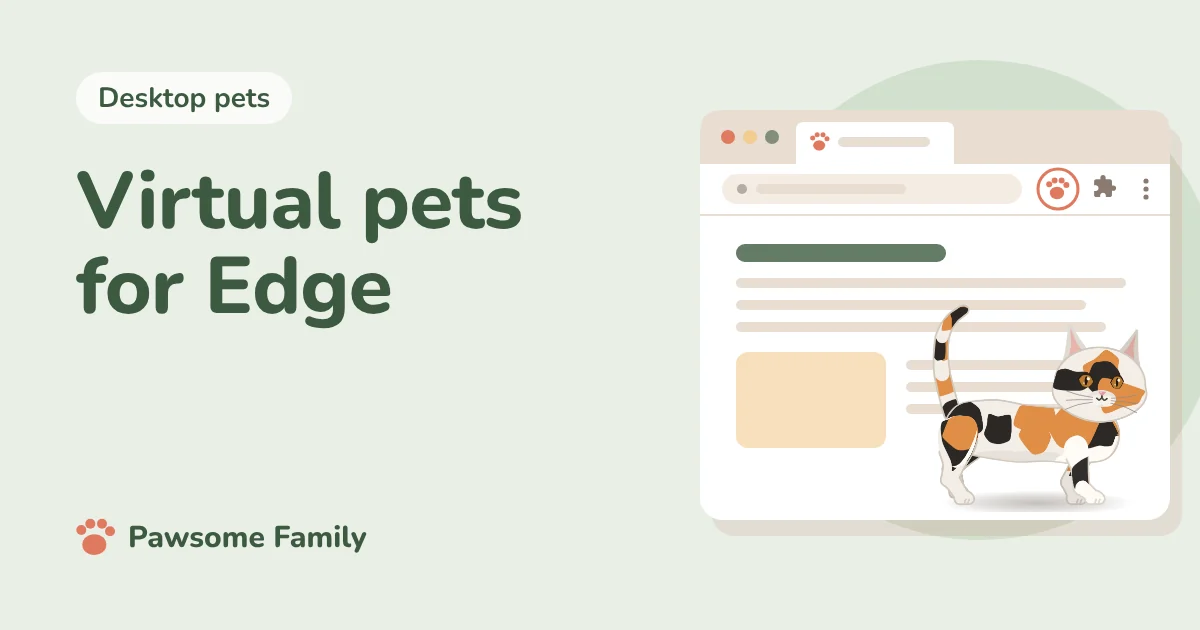
Microsoft Edge runs the same kind of extensions as Chrome, so almost every virtual pet made for Chrome works in Edge too. A few are listed on Microsoft’s own store, Edge Add-ons. The rest you add from the Chrome Web Store, after telling Edge to allow extensions from other stores. It takes a minute.
We make a browser pet, Pawsome Family, which runs in Chrome and Edge. We have not tested the others in Edge. What we say about each one comes from its store page, checked on October 27, 2026, and the steps come from Microsoft’s own guide.
Why Chrome pets work in Edge
Edge is built on Chromium, the same open-source base as Chrome. Extensions are written for that base, not for one browser, so a pet that walks across your pages in Chrome will usually do the same in Edge. Microsoft supports this officially, with a setting called Allow extensions from other stores. Brave, Opera and Vivaldi work the same way: see pet extensions in Brave, Opera and Vivaldi. Firefox is different: see virtual pets for Firefox.
These are for Edge on a computer: Windows, Mac or Linux.
Pets on Edge Add-ons
- Meow, The Cat Pet. A cat that walks across your screen while you browse. You feed it, play with it and pet it, and the Chrome version lets you choose a dog instead. Free. In Chrome it has about 100,000 users and a rating of 4.4.
- Pawsome Family. Ours. A small animated version of your own dog or cat, drawn from 1 to 5 photos, that walks, sits and naps along the bottom of every tab. Free for 30 days, then $3.33 a month, billed yearly at $40 (or $5 billed monthly).
Most pet makers publish only to the Chrome Web Store, so Edge Add-ons has few of them. The pets below are Chrome-only listings that run in Edge too.
Chrome pets that run in Edge
| Pet | What it does | Price |
|---|---|---|
| Shimeji Browser Extension | Characters that walk and climb on your pages | Free |
| Tabby Cat | A new cat on every new tab, to pet and collect | Free |
| Virtual Pets for Google Chrome | A cat or dog you raise in the toolbar window | Free |
| Cursor Cat | Cartoon cats that chase your mouse pointer | Free |
The Shimeji Browser Extension is the most used, with about a million people in Chrome. Our list of virtual pet Chrome extensions compares ten, each one installed and tried.
How to add a pet from Edge Add-ons
- In Edge, open the pet’s page on Edge Add-ons. You can also select Extensions next to the address bar, then Get Extensions for Microsoft Edge, and search.
- Select Get.
- Read what the pet can do, and select Add extension.
How to add a pet from the Chrome Web Store
- In Edge, open the pet’s page on the Chrome Web Store.
- A bar at the top says you can add extensions from other stores. Select Allow extensions from other stores, then Allow. You only do this once.
- Select Get extension, then Add extension.
Keep it in view, or take it away
- To keep its button on the toolbar, select Extensions next to the address bar and choose to show the pet in the toolbar.
- To turn it off for a while, go to edge://extensions and switch it off. Your pet’s settings are kept.
- To remove it, right-click its button and select Remove from Microsoft Edge.
Chrome works almost the same way. Our guide to adding, pinning and removing Chrome extensions covers it.
Two things to check first
- What it can see. A pet that walks on every page needs permission to run on every page. Edge warns you about that, just as Chrome does. Here is what that warning means, and what a well-made pet does with it.
- Whether it is still made. Look at the date the pet was last updated, on its store page. Several pets haven’t changed since 2023, and an old extension can stop working when the browser changes.
Your own dog or cat in Edge
Pawsome Family is a virtual pet made from 1 to 5 photos of your own dog or cat. They walk, sit and nap along the bottom of every tab in Edge and Chrome, on Windows, Mac and Linux, with nothing to feed and nothing to keep alive. In Edge, add it from Edge Add-ons. See an example calico cat or golden retriever.
One pet is free for 30 days, with no card needed.