How to move your Chrome extensions to a new computer
By Aditya Trivedi ·
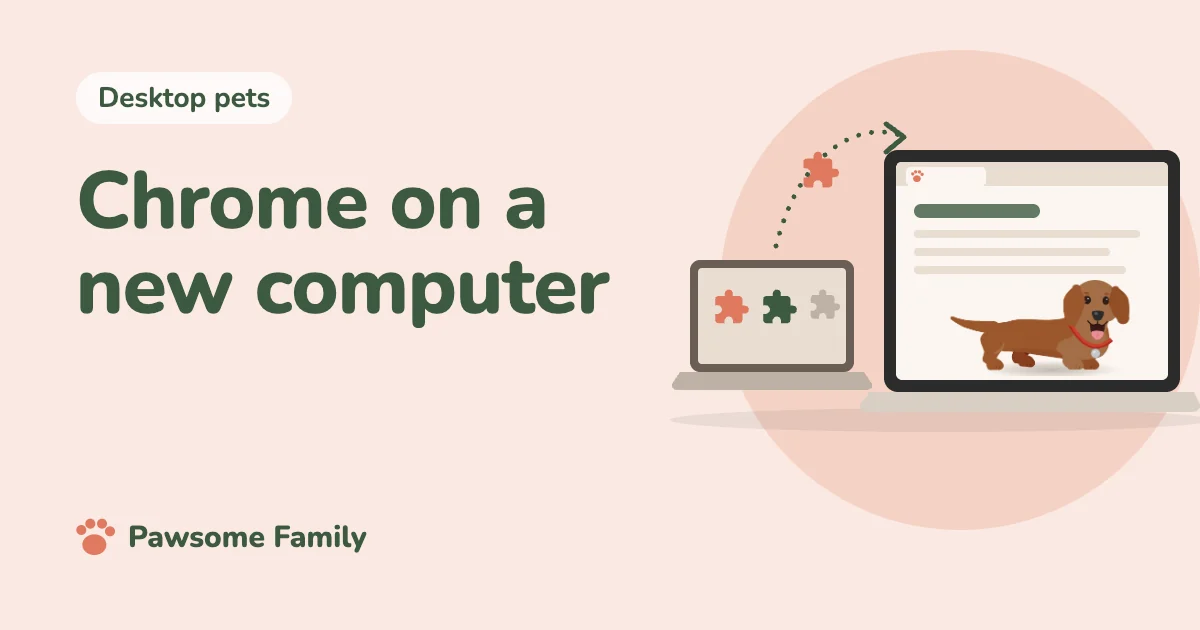
Sign in to Chrome on both computers with the same Google Account, and turn on sync. Chrome then adds your extensions to the new computer by itself, along with your bookmarks, saved passwords, history and settings. What doesn’t come across is what each extension keeps on the old computer, such as your sign-in to it, so expect to sign back in to some of them.
This works the same between a Mac, Windows, Linux and a Chromebook. Below are the steps, what sync carries over and what it doesn’t, and how to move everything by hand if you’d rather not use sync.
On the old computer
- Select your profile picture at the top right of Chrome. If you aren’t signed in, sign in with your Google Account and turn on sync when Chrome offers it.
- Check that extensions are included. Open Chrome’s settings, search for “sync,” and make sure Extensions is turned on in the list of what Chrome syncs.
- Leave Chrome open and online for a few minutes, so everything is saved to your account.
On the new computer
- Install Chrome and open it.
- Sign in with the same Google Account, and turn on sync.
- Wait a few minutes. Your extensions are added one by one, and your bookmarks, passwords and settings arrive with them.
- Select the Extensions icon, the puzzle piece, to check the list. Pin your favorites to the toolbar again if they aren’t there.
- Open each extension you use, and sign in to it again if it asks.
Our guide to adding, pinning and removing Chrome extensions has the steps for pinning, site access and Incognito.
What sync carries over
- Your extensions, and your theme
- Bookmarks and your reading list
- Saved passwords, addresses and other autofill details
- Browsing history, and the tabs open on your other devices
- Most of Chrome’s settings
What it doesn’t
- Sign-ins inside extensions, and most of what an extension keeps on the computer. Some extensions save their settings to your account, but many keep them on the computer only.
- Sign-ins to websites. You will need to sign in to most sites again. Chrome fills in any passwords you saved.
- Extensions added from outside the Chrome Web Store.
- Downloads and other files, which you move the usual way.
- Extensions your organization blocks. On a work or school computer, the IT team decides which extensions are allowed, and sync can’t override that.
Moving without sync
If you’d rather not sync, you can move things by hand:
- Make a list of your extensions. On the old computer, select the puzzle piece, then Manage extensions, and write down the name of each one you use.
- Add each one again from the Chrome Web Store on the new computer.
- Move your bookmarks. On the old computer, open the bookmark manager, select the three dots at the top right, and choose Export bookmarks. That saves a file. Copy it to the new computer, open the bookmark manager there, and choose Import bookmarks from the same menu.
- Move your passwords. In Google Password Manager’s settings, export your passwords to a file, then import that file on the new computer. The file holds your passwords as plain text, so delete it as soon as you are done.
Before you give away the old computer
Sign out of Chrome, then delete your Chrome profile from that computer. That removes your bookmarks, passwords and history from it. If you synced, they stay in your Google Account. Then erase the computer as its maker recommends before you sell it or pass it on.
Your pet, on the new computer
Pawsome Family is a Chrome extension that turns 1 to 5 photos of your dog or cat into a small animated pet that walks, sits and naps along the bottom of your tabs. Your pets are kept with your Pawsome Family account, not on the computer. On a new computer, add the extension, or let sync add it, then select its button in the toolbar and choose Connect my pet. Your pet is back in your tabs, looking the same as before. See the example dachshund.
One pet is free for 30 days, with no card needed.