A desktop pet with no download: what works in your browser
By Aditya Trivedi ·
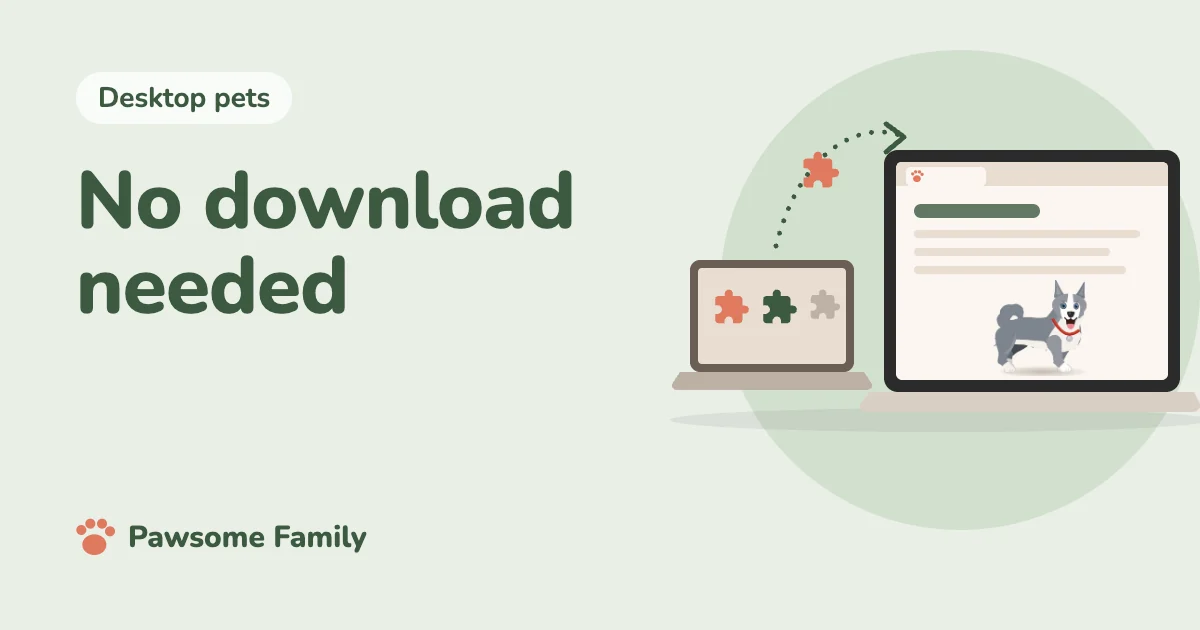
Yes, you can have a desktop pet with no program to download. A browser extension gives you a pet in your tabs, with no installer and no admin password. Your browser does still save the extension, so “no download” really means “no program to install”. The pet also stays inside the browser.
We make Pawsome Family, a browser extension that turns photos of your dog or cat into a small animated pet. We’ll be plain about what this route can and can’t do.
What “no download” can mean
| Kind | What’s saved on your computer | Where the pet goes | How long it stays |
|---|---|---|---|
| A pet on a web page | Nothing to install | That one tab | Until you close the tab |
| Browser extension | The extension, kept by your browser | Almost any website, in every tab | Until you remove it |
| Installed program | A program | Your whole screen | Until you uninstall it |
A pet on a web page is the only one with truly nothing added, but it ends when you leave that page. If you want a pet that stays with you as you browse, an extension is the smallest step.
What you gain
- No installer and no admin password. You add it from the Chrome Web Store or Edge Add-ons.
- It works on a Chromebook. Most downloadable pets don’t install on ChromeOS, but a Chromebook adds extensions like any other computer.
- It’s easy to remove. Our guide on how to add, pin and remove Chrome extensions shows how.
With Pawsome Family, you can also sign in on another computer, and your pets are there too.
What you give up
- It stays in the browser. The pet won’t appear over other programs or on your desktop.
- It can’t go everywhere in the browser. Chrome doesn’t let any extension draw on its own pages, such as the New Tab page, Settings and the Chrome Web Store.
- The browser has to be open. Close it, and your pet goes with it.
- It needs a computer. Pawsome Family doesn’t run on phones or tablets.
If you spend your day outside a browser, an installed program will suit you better. Our guide to desktop pets for Windows is a good place to start.
Is a no-download pet free?
Some are, but “no download” and “free” are separate questions, so check both. See free desktop pets for what “free” can mean.
Ours isn’t free for good. One pet is free for 30 days, with no card. After that, it’s $3.33 a month, billed yearly at $40 (or $5 billed monthly), with taxes included. If you don’t get the plan, nothing is deleted and nothing is charged. Your pet stays and naps in one corner of your tabs.
Is it safe?
A pet that shows on every site needs access to every site, so Chrome shows a strong warning when you add one. We explain what that warning means. It makes the publisher matter more, so check a few things first:
- Add it from the official store, and not as a file from another site.
- Read the privacy page. Look for what it says about the pages you visit.
- Look at the store page. Check who publishes it and when it was last updated.
- Remove it if you’re unsure. It only takes a moment.
For ours, the extension only draws your pet. It never reads, records or sends the pages you visit. There’s more in our guide to whether desktop pets are safe.
On a school or work computer
An extension needs no admin password, but some companies limit which extensions you can add, and on a school or work Chromebook the administrator decides. If an extension is blocked, ask whoever runs the computer instead of trying to get around it.
There’s more on keeping a pet at work and pets on a Chromebook.
How to add one
Here’s how it goes with Pawsome Family:
- Make your pet at pawsome.family with 1 to 5 photos. You don’t need an account to try.
- Add the extension. On the Chrome Web Store page, select Add to Chrome, then Add extension. On the Edge Add-ons page, select Get, then Add extension.
- Connect it. Open the toolbar button and select Connect my pet.
- Reload any tabs that were already open.
A pet with no program to install
Pawsome Family is a screen pet made from your own dog or cat, and a desktop pet in your Chrome or Edge tabs, with no app to install. See an example husky or orange tabby.
One pet is free for 30 days, with no card needed.