A virtual class pet for your classroom screen
By Aditya Trivedi ·
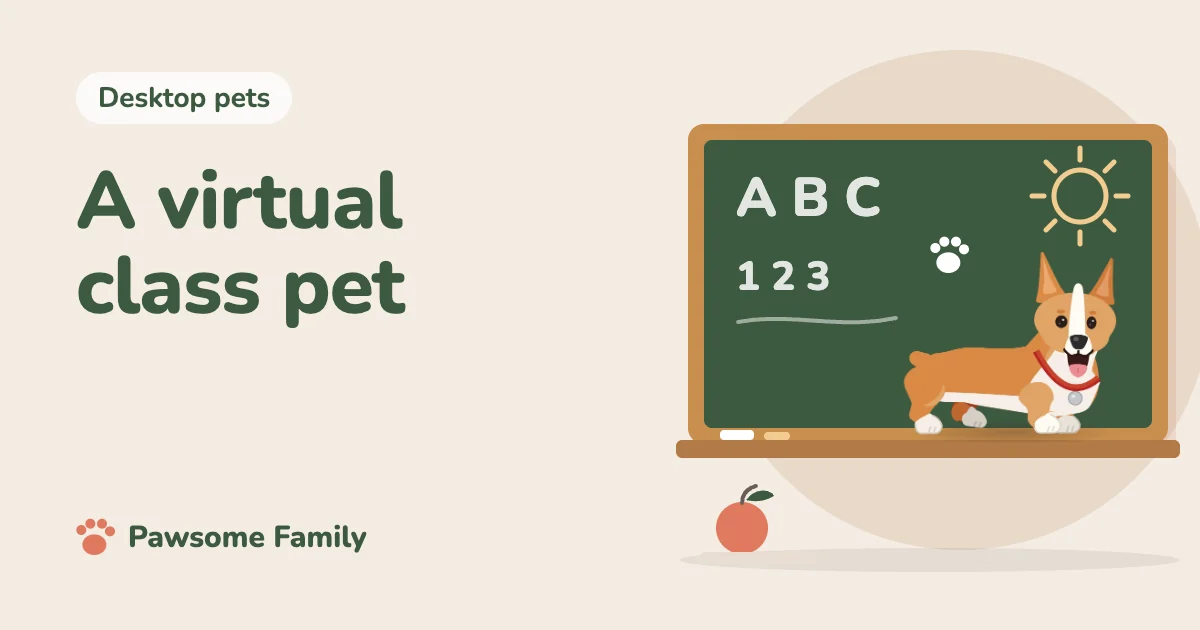
A virtual class pet is an animated animal that lives on the classroom screen instead of in a cage. It walks, sits and naps while you teach, so the class gets the fun of a pet without feeding, cleaning or finding someone to take it home over the holidays. The simplest kind runs in the web browser on the teacher’s computer and shows up whenever the browser is on the board.
We make Pawsome Family, which turns photos of a dog or cat into a small animated pet for Chrome and Edge. This page covers what a screen pet can and can’t do in a classroom, and what to check before you add one.
Why teachers look for one
A real class pet is a lot of work. Someone feeds it every day, cleans up after it, takes it home for weekends and breaks, and keeps it away from children with allergies or fears. Many schools have rules about animals in classrooms, and some don’t allow them at all.
A pet on the screen skips all of that. It can’t teach children to look after a living animal, but it can give the room a shared mascot, something to write and draw about, and a small moment of delight when it walks past during a lesson.
How a screen pet works in class
With Pawsome Family, the pet lives in the browser on your computer:
- It walks along the bottom of every tab in Chrome or Edge. When you put a browser tab on the board, the class sees it there.
- It keeps to the bottom edge, so it doesn’t cover the lesson.
- It naps when the mouse is still for a couple of minutes, which is often exactly when the class is working quietly.
- It doesn’t show on Chrome’s own pages, such as the New Tab page and Settings.
- You choose the size, from 40 to 120 pixels. On a projector, a bigger pet is easier to see from the back row.
It runs on Chrome and Edge on computers, including Chromebooks. It doesn’t run on tablets or phones, so it won’t appear on a class set of tablets.
Your own dog or cat as the class pet
The pet is drawn from photos of a real dog or cat, so the class pet can be your own pet. Children love knowing that the dog walking across the board lives at their teacher’s house. You add one to five photos, and you meet the pet about a minute later.
The best photos are a full side view of your pet standing, and one of the face, straight on. Our guide to taking a side view photo shows how to get one.
What to check with your school first
- Can you add extensions? Many school computers and Chromebooks are managed by the school’s IT team, and some block extensions you add yourself. If Chrome says an extension is blocked, see what “blocked by your administrator” means.
- Ask before you install. A short email to IT saves trouble later. They will want to know what the extension can see.
- What it sees: Pawsome Family only draws your pet. It never reads, records or sends the pages you visit. Your photos are used only to draw the pet and are never shown publicly. The privacy policy has the details.
Keeping it out of the way
There will be moments when you don’t want a corgi strolling past a test or a video. The toolbar button and its Pet settings › page have what you need:
- Hide on this site keeps the pet off one website, such as your quiz page.
- Hide in full screen keeps it off videos and slideshows played full screen.
- Pause for an hour hides it until you select Resume now, or the hour is up.
Classroom ideas
A screen pet gives you a character the whole class shares. Some simple ways to use it:
- Introduce the pet. Tell the class its name, how old it is and one thing it loves. Bring a real photo to compare with the one on the board.
- Draw the class pet. Younger children can draw it walking, sitting and napping, which are the three things it does.
- Write its diary. “What did the class pet see today?” is an easy prompt for a short paragraph.
- Spot the nap. When the pet curls up, the room is usually quiet. Some classes like to keep it that way.
- Pet facts. If the pet is a real breed, look up where the breed comes from and what it was bred to do.
A screen pet compared with a real class pet
| Real class pet | Screen pet | |
|---|---|---|
| Daily feeding and cleaning | Yes | No |
| Holiday and weekend care | Someone takes it home | Nothing to do |
| Allergies and fears | Need planning | No fur, no risk |
| Teaches looking after an animal | Yes | No |
| Cost | Food, bedding, vet visits | A subscription after the free trial |
Neither is better for every class. A screen pet is simply the one that fits a school with no room, no budget or no permission for a live animal.
Cost
One pet is free for 30 days, with no card. The trial starts when you sign up. After that it’s $3.33 a month, billed yearly at $40 (or $5 billed monthly), taxes included. See pricing.
Your class pet, on the board
Pawsome Family turns photos of your own dog or cat into a screen pet that walks, sits and naps along the bottom of every tab in Chrome and Edge, including on a Chromebook. Read more about virtual pets, or see an example corgi or orange tabby.
One pet is free for 30 days, with no card needed.