Chrome profiles: how to keep work and home apart
By Aditya Trivedi ·
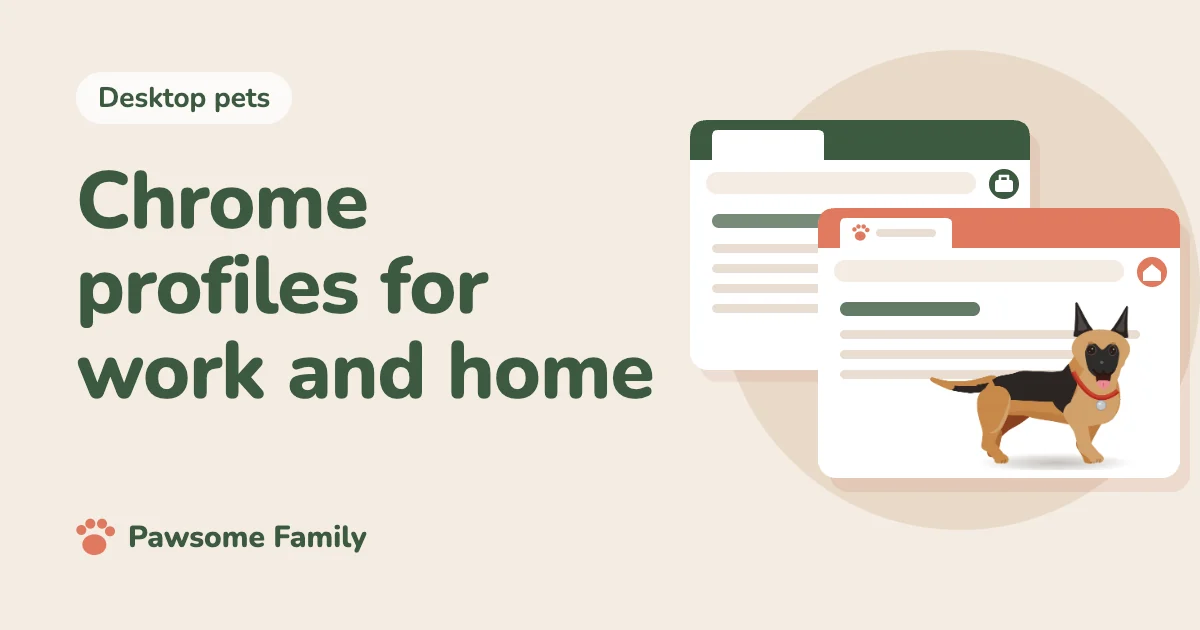
A Chrome profile is a separate set of bookmarks, history, saved passwords, website sign-ins and extensions, in its own window with its own color. Make one profile for work and one for home, and each keeps to itself: your work accounts stay in the work window, and your personal extensions stay in the home window. To add one, select your profile picture at the top right of Chrome and choose to add a new Chrome profile.
Here is what a profile keeps apart, how to set one up, how to switch between them, and what profiles don’t do.
What a profile keeps apart
- Bookmarks, history and open tabs
- Saved passwords, and the sites you are signed in to, so you can be signed in to a work and a personal email account at once, one in each window
- Extensions and their settings
- Theme, color and most settings
- Sync, to its own Google Account, or to none
How to add a profile
- Select your profile picture at the top right of Chrome.
- Choose to add a new Chrome profile.
- Sign in with the Google Account you want for that profile, or carry on without an account.
- Give the profile a name and pick a color, so you can tell its windows apart at a glance. On Windows, you can also add a desktop shortcut that opens it directly.
To see all your profiles in one place, open the same menu and choose to manage your Chrome profiles. Each profile has a card there, and Add makes a new one.
Work and school accounts
When you sign in with a Google Account from work or school, Chrome may set it up as a profile your organization manages. The organization can then set rules for that profile, including which extensions are allowed. Keep personal browsing in your own profile, where those rules don’t apply.
Switching between profiles
- From the menu: select your profile picture and choose the other profile. It opens in its own window.
- From the keyboard: Ctrl+Shift+M on Windows, ChromeOS and Linux, or Command+Shift+M on a Mac, opens the profile menu.
- Keep both open: a work window and a home window can sit side by side. A link you open from another app usually goes to the profile you used last.
Extensions in each profile
An extension added in one profile doesn’t appear in the others. That makes profiles a tidy way to keep a work window plain and quick, with only the extensions your job needs, and to keep personal ones, such as a desktop pet, for home. Our article on keeping a desktop pet at work covers what shows on a shared screen and the settings that keep a pet out of the way.
Guest mode for visitors
If someone borrows your computer for a few minutes, open a Guest window: in the profile menu, or with Guest mode on the page that lists your profiles. A guest can’t see your profiles, bookmarks or passwords, and their history and sign-ins are deleted when they close the window.
What profiles don’t do
- They aren’t locked. Anyone using your computer account can open any of your Chrome profiles. On a shared family computer, give each person their own user account on the computer, as well as their own profile.
- They don’t hide browsing from your workplace. On a work computer or network, your organization may still see what you do in any profile.
Deleting a profile
Open the page that lists your profiles, select the three dots on the profile’s card, then Delete. That removes its bookmarks, history, passwords and extensions from this computer. Anything you synced stays in that profile’s Google Account.
A pet in your home profile
Pawsome Family is a Chrome extension that turns 1 to 5 photos of your dog or cat into a small animated pet that walks, sits and naps along the bottom of your tabs. Like any extension, it only runs in the profile you add it to. Add it to your home profile, and your pet walks along those tabs while your work window stays as it is. See the example German shepherd.
One pet is free for 30 days, with no card needed.